ASC — Procedure Templates
Note
The following describes an opt-in feature for practices that have ambulatory surgery centers (ASCs). To enable this feature for your organization, contact your CSM. For more information, see ASC Setup: Enable ASC Features.
This page allows you to administer templates for documenting medical procedures performed during an encounter. Using procedure templates, you can save a block of text describing a procedure with custom input fields so that you can record specific details of the procedure when it is performed.
Add a template in the Pre, Intra, or Post stage
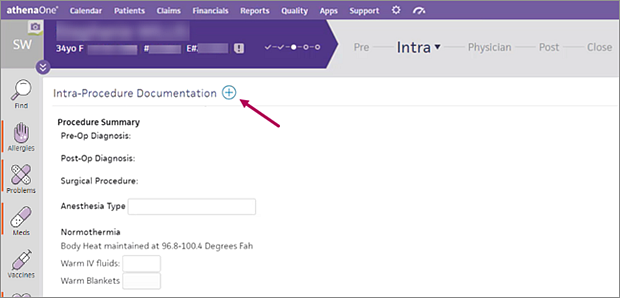
Instead of using the default procedure template that was previously in the Pre, Intra, and Post stages of the surgical case workflow, you can click the add icon  next to Procedure Documentation in the Pre, Intra, or Post stage to add the template you need.
-
Within the surgical case, click Pre, Intra, or Post from the surgical case workflow.
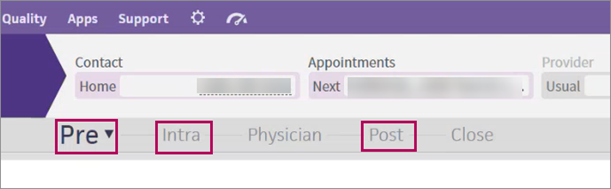
-
Scroll down to the Pre, Intra, or Post-Procedure Documentation section (depending on the stage you're in) and click the add icon
.
-
Select the procedure template you want to add.
-
Continue case documentation as needed.
Assign a procedure template to the Pre, Intra, or Post stage from the Procedure Templates admin page
-
Display the Procedure Templates admin page: On the Main Menu, click Settings
 > Clinicals. In the left menu, under Practice Links — Exam, click Procedure Templates.
 -
Click edit next to the procedure template you want to add.
The template details appear at the top of the page. -
Click the Stage drop-down menu and select the stage you want to assign the procedure template to.
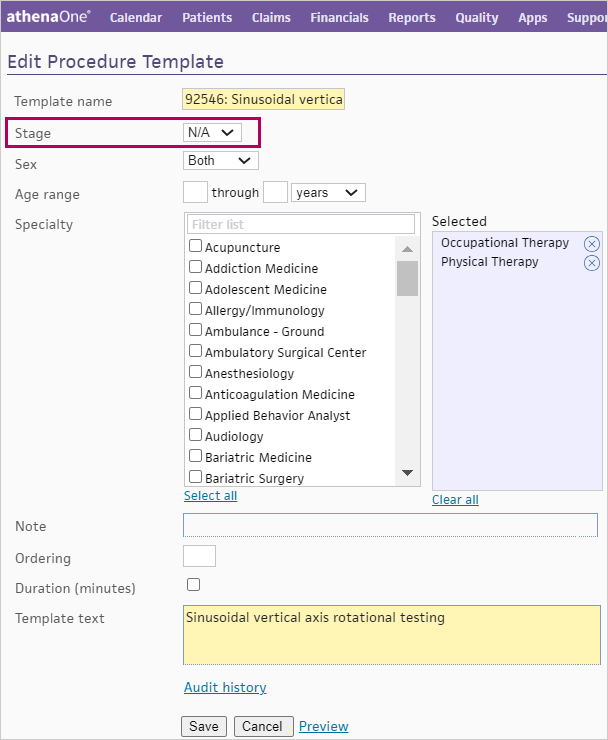
Notes:-
If you set the Stage menu to N/A, the procedure template will appear in the Procedure Documentation selector for all stages (including the Physician stage) of the surgical case workflow.
-
If you select N/A for a procedure template and add the procedure template to your encounter plan, it will appear in the Procedure Documentation selector in all stages.
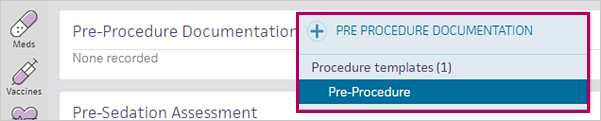
-
-
Edit the remaining template details as needed.
-
Click Save to save the template.
Note
Admins should use the Stage menu to select the appropriate stage the procedure template applies to. Doing so will reduce clutter in the Procedure Documentation selector and ensure the procedure template will appear in the correct stage of the surgical case.
We encourage you to update your existing procedure templates and assign them to their appropriate stage. If you don't have any existing procedure templates, now is a good time to create them and assign them to the appropriate stages of the relevant cases.
PROC Procedure template nomenclature on Encounter Plans admin page
In the Encounter Plans admin page, under the Plan Actions section, the nomenclature for PROC admin procedure templates includes Pre, Intra, or Post following "PROC" depending on the stage the procedure template is affiliated with (for example, PROC Intra: Allergy Injection).
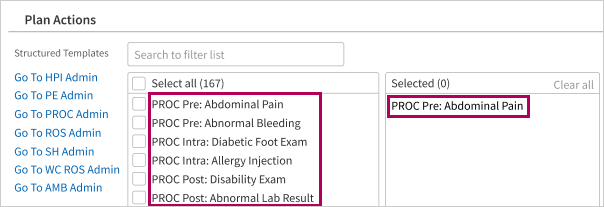
If the PROC procedure template is not affiliated with any Pre, Intra, or Post stage in particular, the nomenclature will just read as "PROC" as usual (for example, PROC: Disability Exam).
| If you select a procedure template with the following prefix... | The procedure template will appear in... |
|---|---|
| PROC Pre | Pre stage |
| PROC Intra | Intra stage |
| PROC Post | Post stage |
| PROC | All the stages (including Physician) |
Note
If in the Procedure Templates admin page you set the Stage menu to N/A for a PROC procedure template, it will appear in the Procedure Documentation selector in the Pre, Intra, Physician, and Post stages.
User access and permissions
You must have the Clinicals Admin: Other Templates user permission to access this page and create, update, and delete custom Procedure section templates, which you use to document medical procedures performed during an encounter.
To access the Encounter Plans admin page, you must have the Clinicals Admin or Clinicals Admin: History/Intake permission.