 Quick Reference — To scan a vaccine in the Assessment/Plan section
Note: You can also scan a vaccine barcode in the document view of the order for vaccines that were ordered earlier in the encounter or in a different encounter.
- In the Exam stage of the patient encounter, click A/P in the navigation bar.
- Click the plus icon
 next to Diagnoses & Orders.
 - Search for and select the vaccine.
- Click the new vaccine order to expand the details.
- Click the Administer tab and then click VIEW MORE at the bottom of the order details.
- Click Scan Barcode.
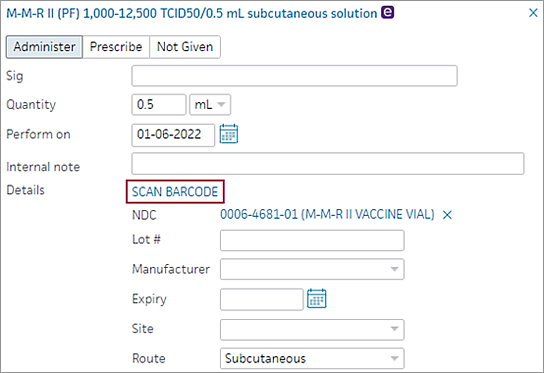
- When you see the message "Ready to Scan," scan the barcode on the vaccine vial with your hand-help scanner.
The NDC, Lot #, Manufacturer, and Expiry fields are populated automatically (if the corresponding data is available). You can edit these fields if necessary.
Note: If you scan a new barcode, the NDC, Lot #, Manufacturer, and Expiry fields are overwritten. - Review the information that appears in the Lot #, Manufacturer, and Exp Date fields.
Note: You receive an error message if you:
- Scan a vaccine that does not match the order
- Scan the wrong barcode type
- Scan an expired vaccine
- Overwrite existing data