Patient Prescription Notifications
Enable settings to send timely prescription notifications to patients via SMS text messages.
Timely prescription text messages help you to engage with patients about their medications. When patients are informed, they are less likely to abandon prescriptions and are more likely to adhere to prescription regimens. With patient prescription notifications, you can notify your patients via SMS text message when their medications or durable medical equipment (DMEs) are electronically prescribed.
Advance prescription awareness with text notifications
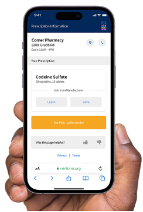
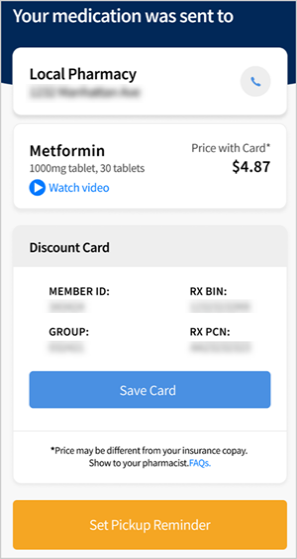
When enabled, a HIPAA-compliant text appears for eligible patients on their smartphones each time a medication or DME is ePrescribed for them. In accessed notifications, patients view:
|
|
Prescription notifications
HIPAA-compliant SMS texts
Patients enrolled for prescription notifications receive HIPAA-compliant text messages from rxinform.org each time a prescription is ePrescribed or refilled.
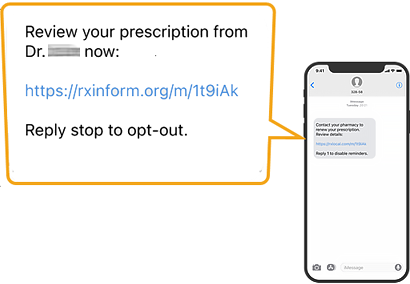
The message includes a link to the patient’s prescription information and identifies the prescribing provider.
Patient authentication
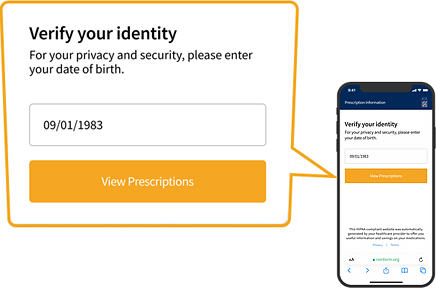
Upon selecting the link in the notification, the patient is prompted to enter their date of birth to verify their identity. The patient taps View Prescriptions to continue.
Key prescription information
Patients view the pharmacy location and details for the medication prescribed. Patients can also access discount information, cash discount cards, coupons, and educational content if available.
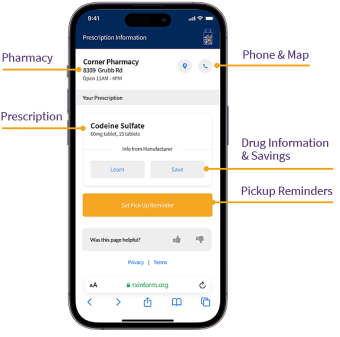
If a medication includes a discount card from the manufacturer or a cash discount card for patients paying cash, this also appears. Depending on the available card, patients can save or text the card to themselves or show the card in the notification at the pharmacy.
Note
Drug savings are contingent upon the pharmacy dispensing the medication. Not all pharmacies may honor drug discounts or coupons.
Note
Drug discount, cash discount card, coupon, and educational content are included in notifications only when available. Not all medications have a cash discount card available.
Practice notification preferences
Authorized administrators can configure prescription notification defaults for the entire practice. For multispecialty practices, administrators can also create specialty-specific defaults.
Note
You must have administrative privileges to enable global user settings.
Use these settings to choose whether prescription text notifications are sent to eligible patients by default and whether available cash discount cards are included in those notifications.
- Display the User Preferences Admin page: On the Main Menu, click Settings
 > Clinicals. In the left menu,under Practice Links — Chart/Encounter, click User Preferences.
 - If you need to configure a specialty-specific default, select the specialty or specialties before you update the Prescription Text Messages preferences.
- Scroll down to the Prescription Text Messages section.
- Send text msgs to eligible patients - Select this option to send prescription notifications to eligible patients when providers ePrescribe medications or DMEs.
- Include cash discount cards - Select this option to include available cash discount cards in prescription text notifications for patients paying cash. Clear this option if cash discount cards should not be included.
- Click Update. To create a specialty-specific default, click Add.
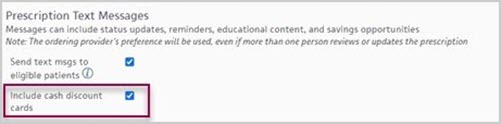
Note: Turning off cash discount cards will not turn off all patient prescription text notifications. Not all medications have a cash discount card available.
Note
If a provider deselects their text notification setting in User Preferences, patients with medications prescribed by that provider will NOT receive notifications, regardless of whether the practice-level setting is enabled. See Provider notification preferences. When deselected: athenaOne will NOT send prescription notifications for providers in your practice unless individual providers opt in. See Provider notification preferences to configure.
Note
If a provider enables their text notification setting in User Preferences, patients with medications prescribed by that provider will still receive notifications, regardless of whether the practice-level setting is deselected. See Provider notification preferences.
Provider notification preferences
If your practice has prescription notifications enabled, the system automatically sends notifications to eligible patients when providers prescribe. No configuration is required. Perform the following to:
-
Opt-out: As a provider, deselect the following user preference to prevent notifications from sending when you prescribe.
-
Opt-in individually: As a provider, enable the following user preference to send notifications when you prescribe, even if the practice-level notification setting is not enabled.
Individual providers can set prescription notification preferences differently from the practice or specialty default. Individual preferences override those defaults.
- Display the User Preferences page: On the Main Menu, click Settings > User Preferences.
- In Use default layout, select My User Preferences.
- Scroll down to the Prescription Text Messages section.
- Send text msgs to eligible patients - Select this option to send prescription notifications when you ePrescribe medications or DMEs, regardless of whether notifications are enabled at the practice level. Clear this option to prevent notifications from sending when you ePrescribe, even if notifications are enabled at the practice level.
- Include cash discount cards - Select this option to include available cash discount cards in prescription text notifications for patients paying cash. Clear this option if cash discount cards should not be included.
- Click Submit.
Note: Turning off cash discount cards will not turn off all patient prescription text notifications. Not all medications have a cash discount card available.
Patient eligibility and participation
If eligible, patients receive notifications automatically but can opt out at any time. The provider prescribing for the patient must also have notification settings enabled. See Provider notification preferences.
Eligibility requirements
To receive prescription notifications, patients must:
-
Have a valid smartphone number in the system, either entered during registration or in the patient portal.
-
Consent to receive text messages, either at registration or within patient portal settings.
-
Be over 18 years of age.
-
Not be receiving drugs from 340B programs.
Patient opt-in
If eligibility requirements are met, patients receive text notifications automatically each time their provider ePrescribes a medication or DME for them.
Important
Patients can configure notification preferences themselves in the patient portal or you can enable this for them during registration. However, they must meet all other requirements as well to receive texts.
Note
If your practice does not use athenaCommunicator, athenahealth's patient portal application, disregard the steps that follow and configure prescription notification settings for them during registration. See Configure prescription notifications without athenaCommunicator enabled.
To configure:
-
As a patient, log into the patient portal.
-
In the portal, click the arrow next to your name in the upper right and select My Profile > Notification Settings.
-
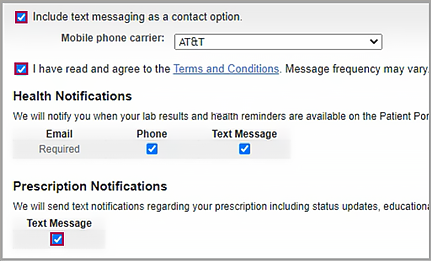
In Notification Settings, select:
-
Include text Messaging as a contact option
-
I have read and agree to the Terms and Conditions
-
Under Prescription Notifications, select Text Message.
-
-
Scroll down and click Save.
Note
Patients who had previously opted out of receiving text messages must have both their consent to text and privacy information updated before they can receive prescription text messages. You can configure these options for patients who have trouble updating these settings for themselves in the portal.
Update a patient’s consent to receive text messages: In the search bar in the upper right of the Main page, enter the patient’s name. Press ENTER. In Find a Patient, click Quickview to the right of the patient’s name. Scroll down to the Contact Details & People with Portal Access section and click Edit. In Contact Details, under Consent to receive automated, set Texts to Yes and click Save.
Update a patient’s privacy information to allow text messages: Click the Menu icon  . Select Quickview and go to Registration -> Privacy Information. On the Privacy Information page, under Communicator Automated Messaging Preferences, locate Prescription Notifications. Check the Text Message box. Scroll down and click Save.
Patient opt-out
Patients can opt out of receiving messages by performing one of the following actions.
-
Opt-out by smartphone: Patients text ‘stop’ or ‘unsubscribe’ in reply to a prescription notification message.
-
Opt-out from the patient portal: Patients log into the patient portal and remove the Text Message selection in Notification Settings.
Opt-out for specific prescriptions
Patients may not want to receive text notifications for specific medications prescribed.
During their encounter, ask the patient whether they wish to receive a text message for the prescription. If they don’t wish to receive a text, remove the selection from Send patient text messages for this prescription in the prescription review page prior to sending. When deselected, the patient will not receive a text notification for the specific prescription but will still receive text notifications for other medications prescribed.
Configure prescription notifications without athenaCommunicator enabled
If your practice does not use athenaCommunicator, athenahealth's patient portal application, you can still configure prescription notification settings for new or existing patients. Update this setting at patient Check In. At Check In:
-
In Verify & Edit Registration Information, locate Privacy.
-
In Consent to prescription text messages, select Yes to enable or No to disallow notifications.
-
Scroll down and click Save.
From Quickview: In the search bar in the upper right of the MAIN page, enter the patient’s name. Press ENTER. In Find a Patient, click Quickview to the right of the patient’s name. Scroll down to PRIVACY. In Consent to prescription text messages, select Yes to enable or No disallow notifications. After completing registration, scroll down and click Save.