ChartSync
Problems
When problems from CommonWell and Carequality or Direct Secure Messaging are available to view and reconcile, they are displayed in a new ChartSync panel on the right of the Problems tab or Intake checklist. With one click, you can add a problem from an external source to the chart.
Note
ChartSync Problems is not available for any organizations that utilize athenaOne for Hospitals and Health Systems.
Problems will be automatically extracted from these CommonWell and Carequality document types and displayed in the ChartSync Panel even if the document is not added to the patient chart.
|
|
|
|
|
|
|
|
|
|
|
|
|
|
|
|
|
Problems from other document types will be extracted and displayed in the ChartSync Panel only after the document has been added to the patient chart.
Resources
- ChartSync Problems — Demo Video
- User Guide — Data Reconciliation (legacy data reconciliation tool)
How problems from other sources appear
Orange alert bar
When a problem from an external source is available for reconciliation, either in ChartSync or in the legacy data reconciliation tool, an orange alert bar appears to the left of the Problems tab of the Intake checklist and the patient chart. At the top of the Problems tab of the chart, a View problems from other sources link also appears.

The orange alert bar displays until all problems from external sources are reconciled in ChartSync and the legacy data reconciliation tool. A problem is reconciled in the ChartSync panel when it is added to the patient's chart or moved to the Dismissed list.
Blue ring
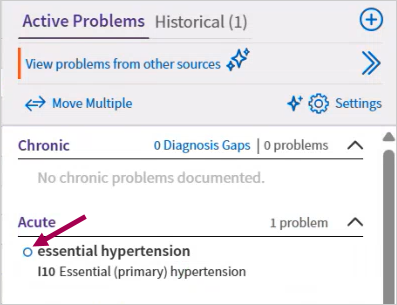
Problems that were added or moved in the Problems List are identified with a blue ring icon to draw attention to changes made to the patient's problems. The blue ring displays for the department the user is logged in to until the patient encounter is closed. The blue ring displays in these scenarios:
- When a problem is added from the search, from the ChartSync Panel, from the A&P, or from an OB worksheet.
- When a problem is moved between active and historical status or among acute, chronic, or uncategorized categories.
ChartSync panel
In the Intake checklist, the ChartSync panel automatically displays to the right of the Problems section. In the Problems tab of the patient chart, click View problems from other sources to display the ChartSync panel.
Problems from external sources display in the ChartSync panel with the following information (when available) and action buttons:
-
Problem name
-
HCC tag (if applicable). If you hover over an HCC tag, the associated ICD-10 codes, HCC IDs, and HCC versions are displayed.
-
Name of the external source. You can click the name to view the source document.
-
Onset date
-
Action buttons (these appear only when you hover over a problem):
-
 – Move the problem to the Dismissed list. For more information, see Dismissed Problems. You can also dismiss multiple problems at once instead of individually.
 -
 – Add the problem to the patient's chart.
 -
 – Add the problem to the patient's Historical Problems list. This button appears if the problem has an end date.
-
You can click a problem in the ChartSync panel to view more details such as when it was last modified, the status, ICD-10 code, and note, if provided by the sender.
Dismiss multiple problems at once
To dismiss multiple problems at once, first select multiple problems on the Incoming tab: either all problems or problems at the section level (Not on chart, Related to Chart, or Unrecognized). If needed, you can deselect individual problems before clicking Dismiss at the top of the list.
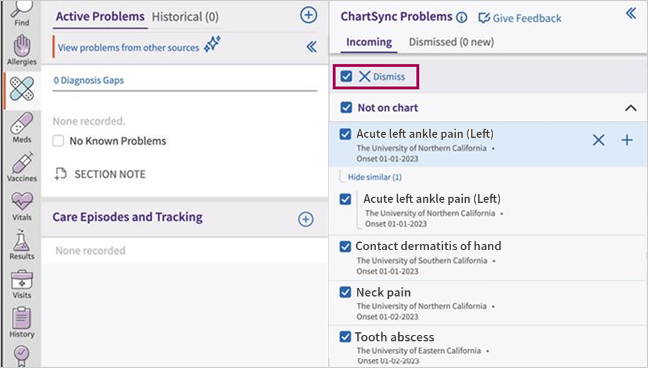
Note: If you apply a filter after selecting problems, all selected problems will be dismissed when you click Dismiss, even if the filter causes the problem to be hidden from the panel.
Once you confirm the move by clicking Dismiss Selected, selected problems are moved to the Dismissed list and cannot be moved back to the Incoming list.
Problems dismissed from ChartSync will also be dismissed in the legacy data reconciliation tool.
How problems are organized on the ChartSync panel
Problems are sorted in the ChartSync panel based on the onset date or the last modified date if the onset date is not present. If the onset date and last modified date are not available, it is sorted alphabetically.
Similar problems
When the same problem comes from multiple sources or the same source more than once, Show similar appears below the problem, indicating the number of matching problems in parentheses. These similar problems are grouped together because they share the same name but have different details, such as onset date, notes, source, or ICD-10 code. Click Show similar to view all the sources.
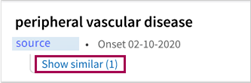
You can choose to add one of the similar problems to the patient's chart by hovering over the problem and clicking or .
Not on chart
Problems under the "Not on chart" heading do not exist in the patient's athenaOne chart (in neither the Active nor the Historical Problems list). Simply hover over a problem and click or to add it to the patient's chart.
Related to chart
Problems under the "Related to chart" heading already exist in the patient's athenaOne chart (in either the Active or the Historical Problems list). These “related to chart” problems have the same SNOMED code as a problem on the chart but might have a different IMO code, ICD-10 code, source, onset date, or note.
When you click or for a problem listed under “Related to chart,” you will be prompted to keep the current chart problem or replace the chart problem with the information from the incoming problem.
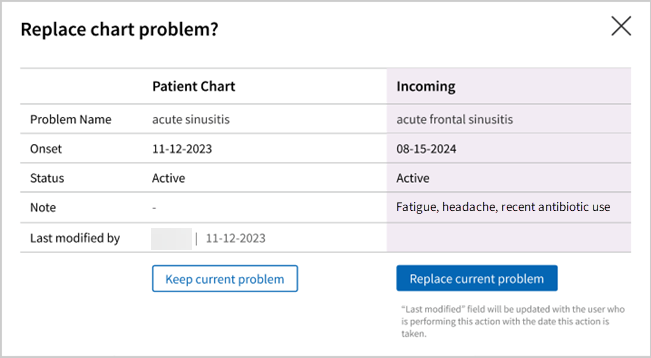
When you choose to replace a problem, it cannot be merged with the existing problem. Medications previously ordered under the original problem will not be linked to the replacement diagnosis. The replacement is treated as a new problem (i.e., the old problem is deleted and a new one is added). When a support staff member generates an order group and adds the medication to the A&P, it may bring the associated problem and medication into the A&P. However, this will not reactivate historical problems automatically. The user would need to explicitly accelerate the diagnosis from A&P to the active Problem List or manually add it to the problem list if needed.
Unrecognized problems
If you see an Unrecognized Problems section at the bottom of the ChartSync panel, it means that athenaOne could not map each problem in this list to a problem supported in the patient chart. You can click each source document to learn more about the problem and you can manually add the problem within the chart tab as needed.
Filter problems
To manage problems more efficiently, you can apply filters at the top of the Incoming tab of the ChartSync panel.
- By default, inactive and resolved (historical) problems are hidden.
- By default, problems that are retrieved from Continuity of Care Documents (CCDs) are hidden.
- By default, only problems modified over the last two years are displayed. For example, on January 3, 2026, problems with a last modified date before January 3, 2024 are not displayed on the ChartSync panel. You can also display problems that were modified since the last encounter or problems that were modified at any time.
- Filters apply to all patients for the user's session.
- If the Since last encounter filter is selected and the patient doesn't have an encounter for the selected department or ChartSync data is not available for that encounter,
To change the filter:
-
On the top right of the Incoming tab, click Filter.
-
Select the date range or the option to show or hide inactive problems.
-
Click Apply Filters.
Dismissed problems
Once you dismiss a problem, you cannot move it back to the Incoming tab.
View dismissed problems by clicking the Dismissed tab at the top of the ChartSync panel. The number that appears on the tab (for example, “2 new”) shows the number of problems that were recently dismissed. The number displays until an encounter in the department is closed.[e
When you dismiss a problem and the same problems are received again from external sources, they are handled in the following ways:
-
Problems with all the same details as a dismissed problem (SNOMED code, IMO code, ICD-10 code, onset date, source, and note) will not appear for action again on the ChartSync panel.
-
Problems with the same SNOMED code but different IMO code will appear under the “Related to chart” heading for reconciliation.
-
Problems with the same SNOMED code and IMO code but different ICD-10 code or source are automatically dismissed and indicated on the Dismissed tab with “Auto dismissed by athenaOne on <date>” The number on the top of the Dismissed tab does not include problems in this category that were automatically dismissed.
-
Problems with the same SNOMED code and IMO code but a different onset date are automatically dismissed but are NOT indicated on the Dismissed tab.
-
Problems with the same SNOMED code and IMO code but different notes are automatically dismissed and indicated on the Dismissed tab with “Auto dismissed by athenaOne on <date>.” The number on the top of the Dismissed tab also includes problems in this category that were automatically dismissed.
How problems from external sources are mapped and compared in athenaOne
-
Problems from external sources are compared against problems that exist in the patient's chart to prevent duplicate problems from appearing in the ChartSync panel. athenaOne deduplicates results based on SNOMED code, IMO code, ICD-10 code, source, onset date, and notes.
-
If a problem from an external source has the same SNOMED code but different IMO code, ICD-10 code, source, onset date, or note as a problem that exists in the patient's chart, it will appear as an entry under the "Related to chart" heading.
-
For similar problems that are grouped but have differences in ICD-10 codes, different sources, or different onset dates, if you add one to the chart or dismiss it, the others will be automatically removed from the ChartSync panel.
-
For similar problems that are grouped but have different notes, if you add one to the chart or dismiss it, the others will move to the "Related to chart" section for you to reconcile.
-
If you add or dismiss a problem in a group where the only difference is the IMO code, the other problems will remain in the group. This allows you to individually add or dismiss the remaining problems, as the Problems list supports adding problems with different IMO codes.
-
If a problem cannot be mapped to a problem in athenaOne, it will be viewable in the Unrecognized Problems section of the ChartSync panel, but it cannot be added to the patient's chart with one click.
-
If No Known Problems is present in an incoming chart and a new problem is ignored in ChartSync, the No Known Problems box will not be displayed in the ChartSync panel.
How this works with the legacy data reconciliation tool
With this new workflow, you will need to reconcile some problems from other sources through athenaOne's legacy data reconciliation tool (accessed through a link at the top of the ChartSync panel).

Keep in mind:
-
The legacy data reconciliation tool will continue to contain older unreconciled tasks.
-
Problems from patient self check-in and the Patient Portal can only be reconciled in the legacy data reconciliation tool.
-
The orange alert bar will continue to display until tasks in both the legacy and the new ChartSync workflow are completed.
-
If a problem is reconciled in the new workflow, it will be reconciled in the legacy tool to prevent duplicate work.
For more information on the legacy data reconciliation tool, see User Guide — Data Reconciliation.
Quick reference
| Icons | Description |
|---|---|
 (blue ring) (blue ring) |
Indicates a problem that was added or moved in the Problems List. The blue ring displays for the department the user is logged in to until the patient encounter is closed. |
 (orange alert bar) (orange alert bar) |
Indicates a problem from an external source is available for reconciliation, either in ChartSync or in the legacy data reconciliation tool. |
| Action buttons | Description |

|
Move the problem to the Dismissed list. You can dismiss multiple problems at by selecting them before clicking Dismiss. |

|
Add the problem to the patient's chart. |
|
|
Add the problem to the patient's Historical Problems list. This button appears if the problem has an end date |
| Action links | Description |
| More problems to reconcile | Reconcile problems from other sources through the legacy data reconciliation tool. The link appears at the top of the ChartSync panel. |
 Related Topics