Access Original athenaOne Dental with Single Sign-On
This feature applies to Community Health Centers (CHCs) that use original athenaOne Dental.
You can now use single sign-on (SSO) for original athenaOne Dental so that you only need to have one username and password for athenaOne and athenaOne Dental. This enables you to toggle between modules (athenaOne and athenaOne Dental).
 Overview
You can now access original athenaOne Dental via Single Sign-On (SSO).
The athenaOne Apps section provides access to athenaOne Dental.
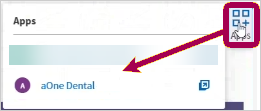
It can access:
- Inside a Patient Chart — Provides access to the patient’s Overview.
- Inside a Patient’s Encounter — Provides access to a patient’s specific visit encounter.
- Outside a Chart or Encounter — Provides access to the Administrative module, the Reporting Module, and the Claims Portal.
Note
There are different versions of the Apps Section. It could visually be different per user but the functionality itself does not change. This release note uses mock data for images.
Setup instructions
To use this feature, you must enable athenaOne Dental in the Apps section. For more information, refer To enable or disable the App for subscribed users in the Apps Section topic.
Tip
Search for "athenaOne Dental" as the embedded app name.
You must have an existing athenaOne Dental username and password.
All non-providers must complete a one-time verification to enable SSO access. This process confirms identity and ensures secure entry into the application. For more information, see One-time verification.
Note
Providers will not need to complete these steps.
One-time verification
All non-providers must complete a one-time verification to enable SSO access. This process confirms identity and ensures secure entry into the application.
Providers will not need to complete these steps.
Workflow details:
-
Sign in to athenaOne.
-
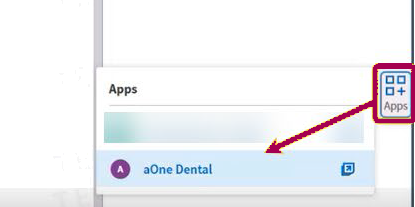
Click the Apps icon. The Apps menu list appears.
Note
You do not need to be in a patient chart or patient encounter.
-
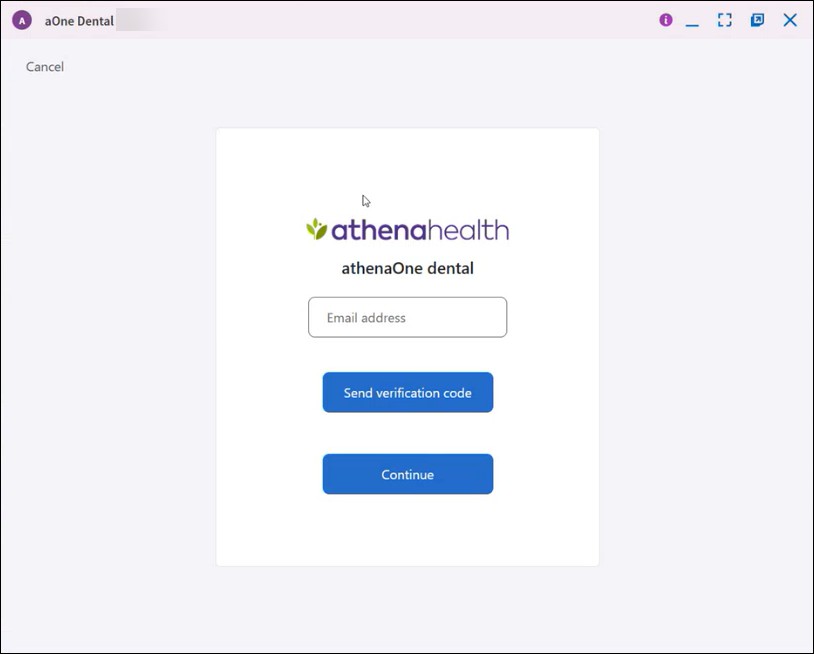
The athenaOne Dental verification window opens. Enter your email address associated with athenaOne Dental.
-
Click Send verification code. An email is sent to the address with a verification code.
-
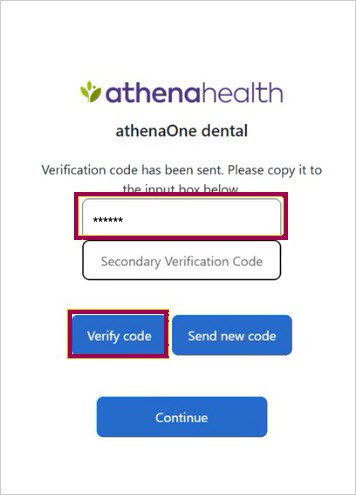
Enter the code from the email into the textbox and click Verify Code.
-
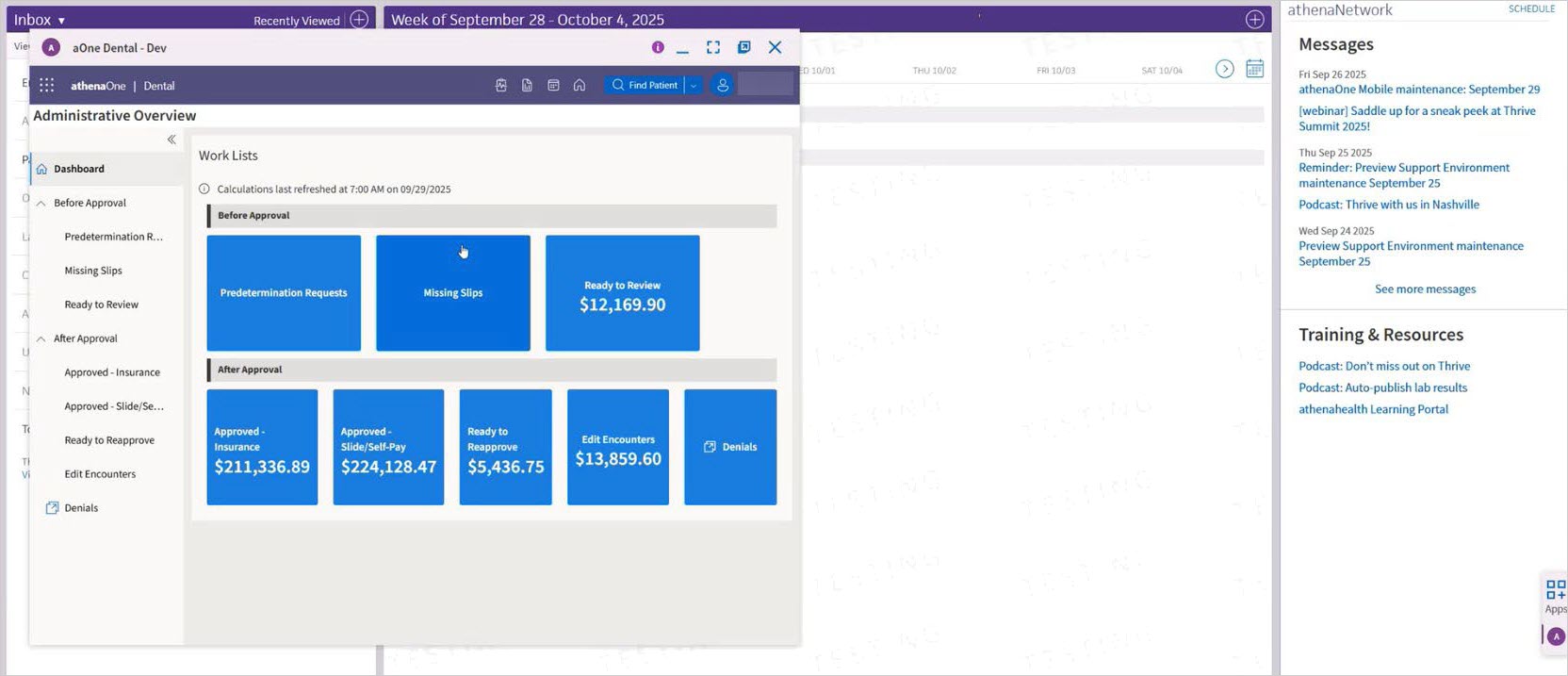
Click Continue. The athenaOne Dental window opens.
Inside a Patient Chart
- Sign in to athenaOne.
- Search for, locate, and select the desired patient.

- Click the Apps section. The Apps menu list opens.
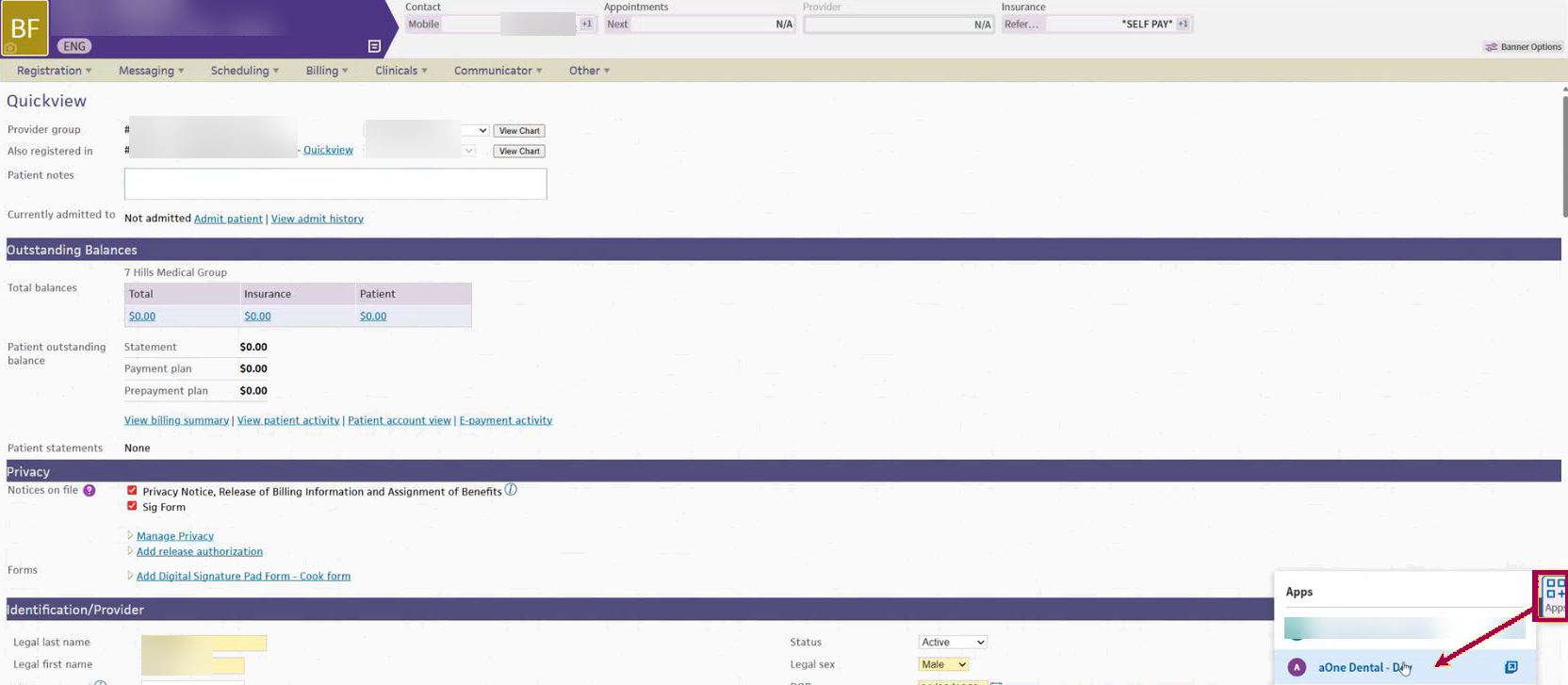
- Click athenaOne Dental.
- The athenaOne Dental window opens in the patient’s Overview.
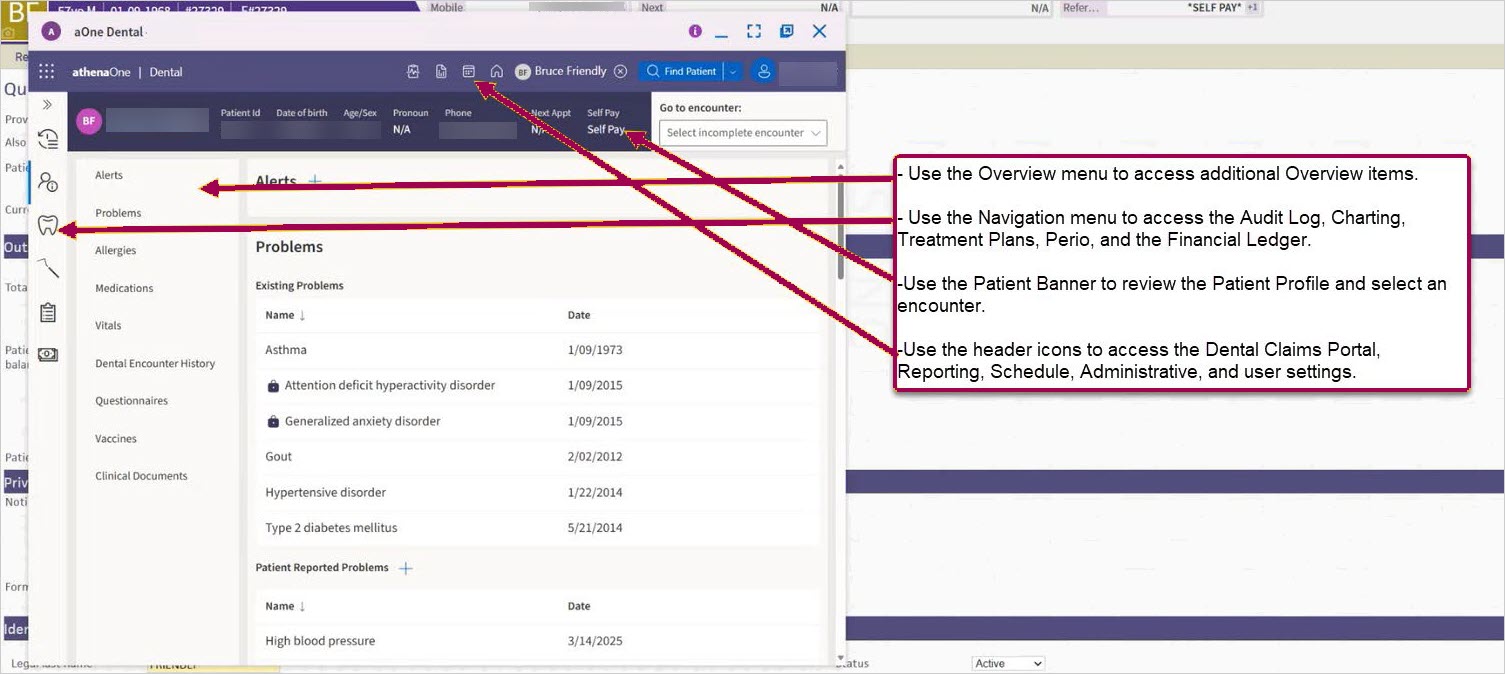
- Use the Overview menu to access the patient’s:
- Alerts
- Problems
- Allergies
- Medications
- Vitals
- Dental Encounter History
- Questionnaires
- Vaccines
- Clinical Documents
- Use the Navigation menu to access the patient’s:
- Audit Log
- Charting
- Treatment Plans
- Perio
- Financial Ledger
-
Use the Patient Banner to review the Patient Profile and select an encounter.
-
Use the window icons for the following:
-
Minimize window.
-
Expand and collapse the window.
-
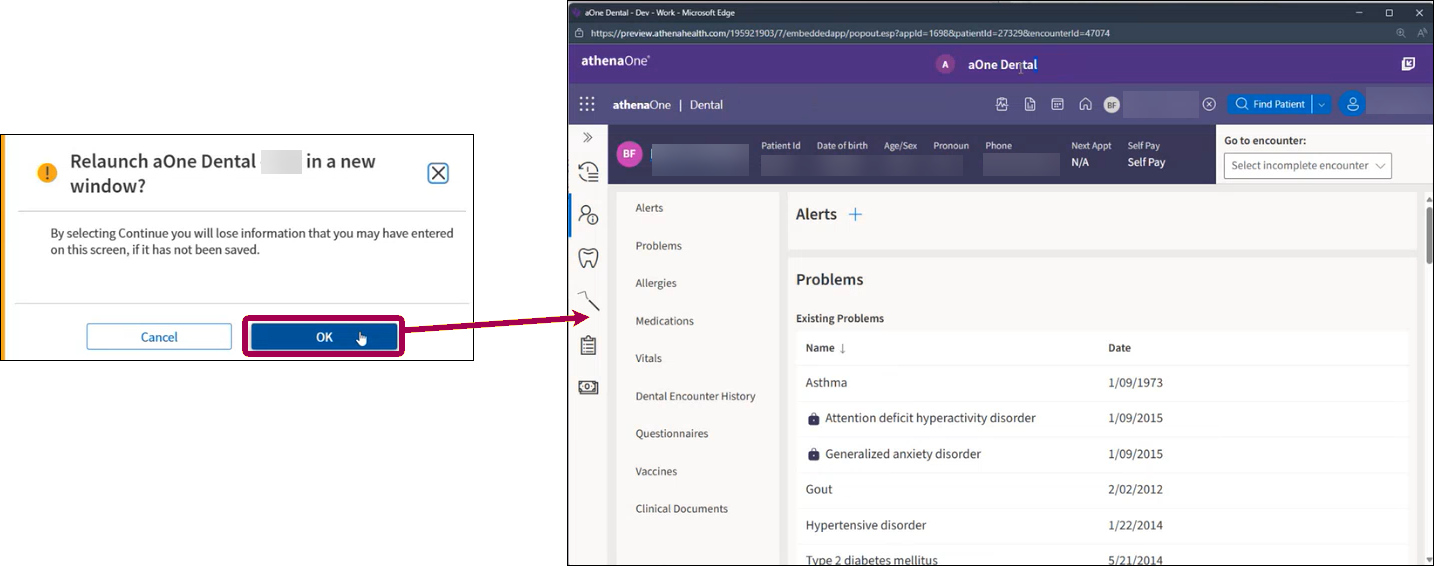
Launch into a separate browser tab. Refer to the Important notes section for more information on the browser tab.
-
Close the window.
-
Inside a Patient’s Encounter
-
Sign in to athenaOne.
-
Search for, locate, and select the desired patient.
-
Navigate to Chart.
-
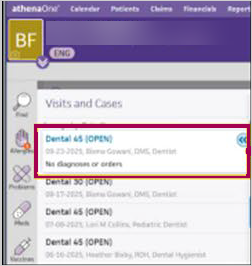
Click an open encounter.
-
Click the Apps icon and click athenaOne Dental. This opens the dental window in the selected encounter.
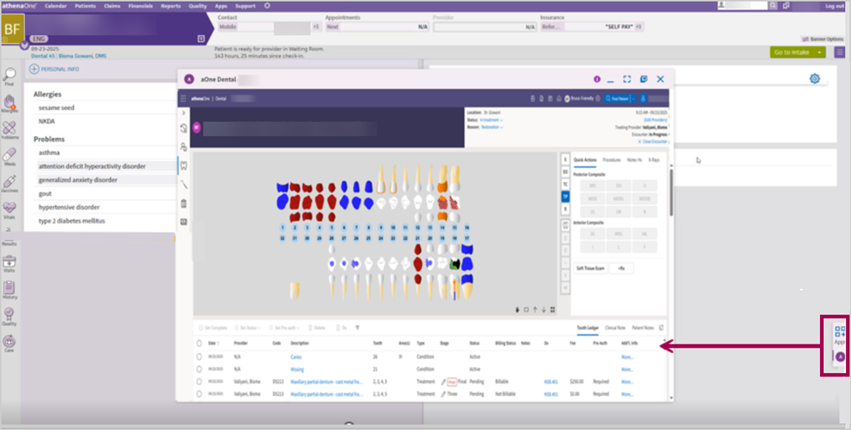
- Use the Navigation menu to access the patient’s:
- Audit Log
- Treatment Plans
- Perio
- Financial Ledger
-
Use the header icons to access modules and user settings.
Outside a Chart or Encounter
-
Sign in to athenaOne.
-
Click the Apps icon. This will open the Apps menu list.
-
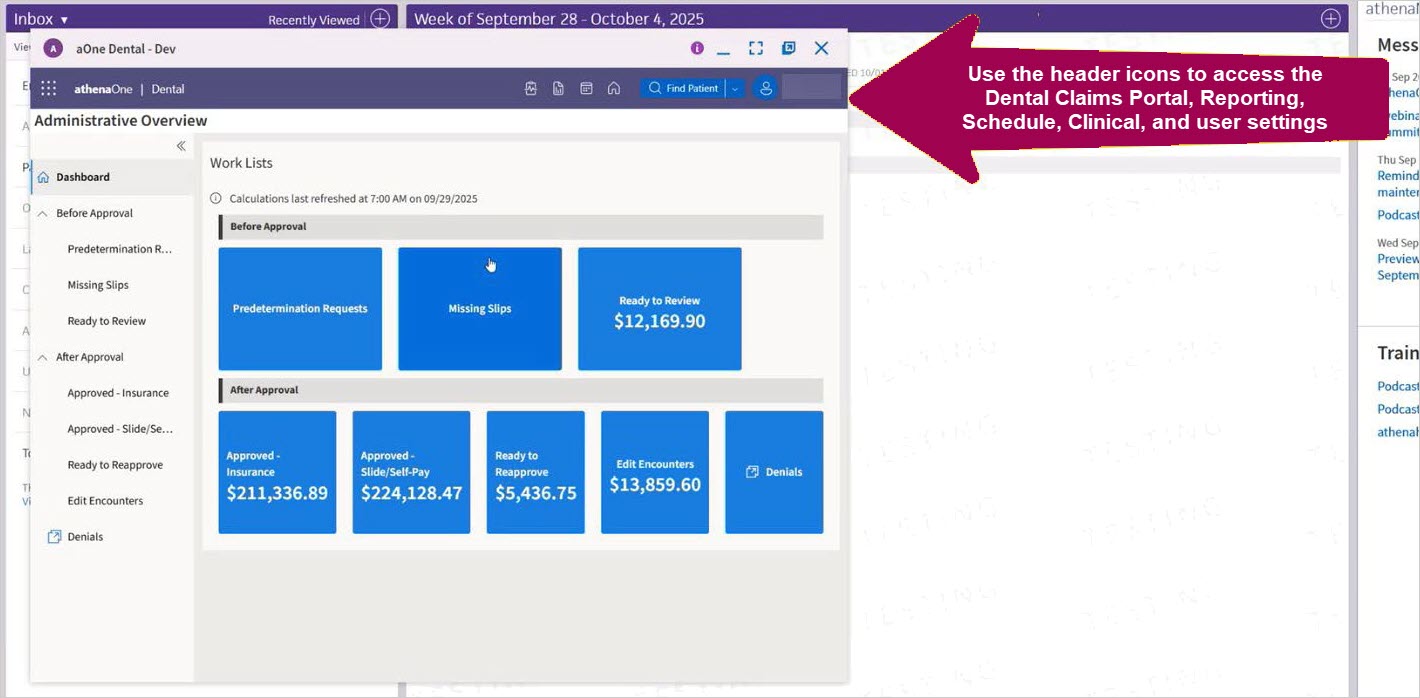
Click athenaOne Dental. The athenaOne Dental window opens.
-
Use the header icons to access modules and user settings.
Note
Access to modules depends on your user role permissions.
-
Use the window icons for the following:
-
Minimize window.
-
Expand and collapse the window.
-
Launch into a separate browser tab.
-
Close the window.
-
Important notes
-
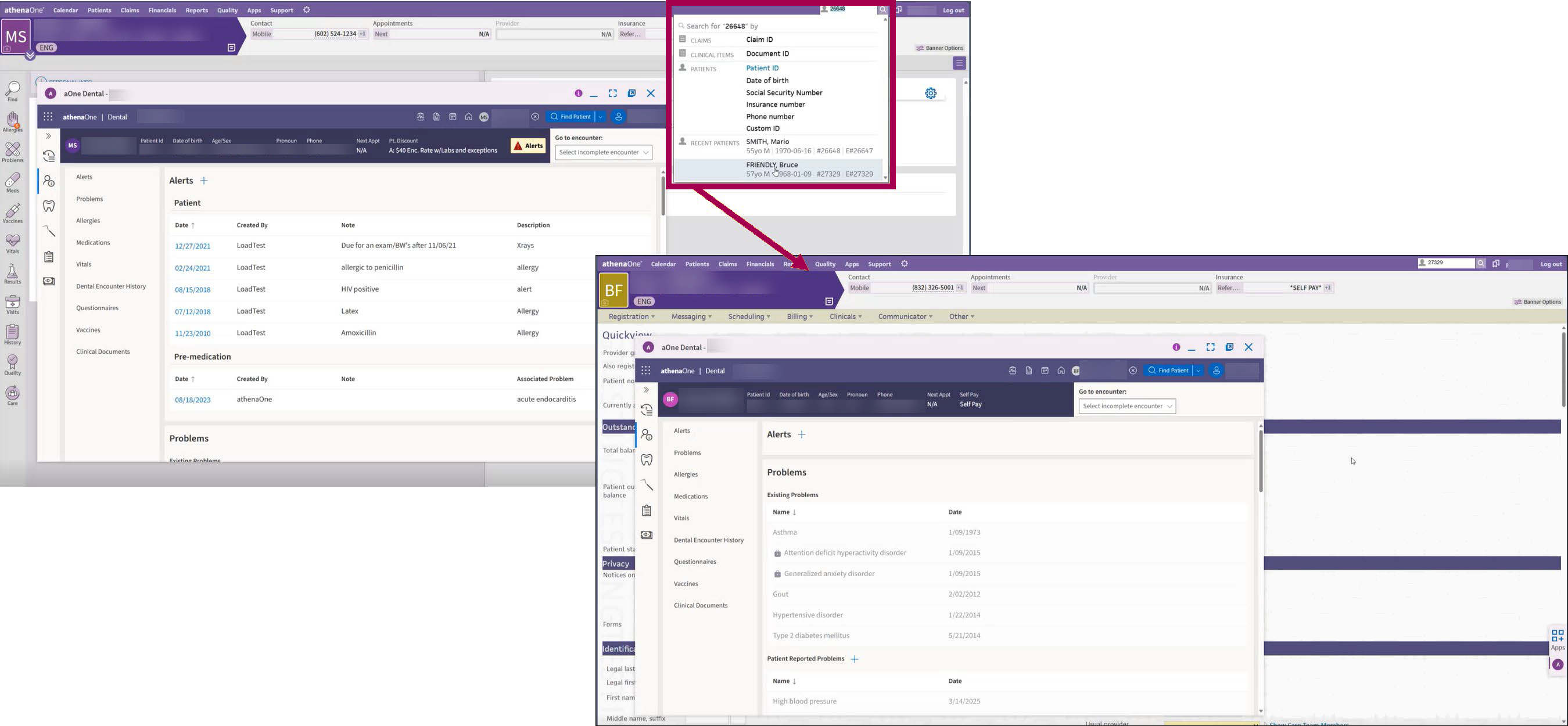
You can easily change between patients, and the dental window automatically updates.
-
When launching the window to a browser tab, any unsaved information will be lost, and you will receive a warning message. Click OK to continue to launch.
-
Additionally, if the patient in athenaOne is changed, the new tab will not change the patient. It will remain in the original patient.