Ambient Notes Setup Guide
Introduction
If your practice has a multi-model contract with athenahealth for Ambient Notes, a practice administrator can assign ambient models to users. Clinicians can try out different ambient models on a compatible iOS device as they become available — without the need to update the Ambient Notes contract. This allows clinicians to try an ambient model for a month and then switch to another model until they find the one that works best for them. This also allows your practice to stay at the forefront of ambient technological innovation.
Important
Ambient Notes is an add-on service with an additional monthly fee per clinician. (For more information, see the related Billing FAQs.)
What is Ambient Notes?
Ambient Notes simplifies clinical note documentation, using AI-driven ambient listening to record patient visits and summarize the visit note for placement in the patient encounter. By automating the clinical note documentation process and providing a seamless user experience, Ambient Notes empowers clinicians to focus on what matters most — delivering high-quality patient care.
To learn more about Ambient Notes functionality, check out the resources on the Ambient Notes Feature Overview in O-help. To stay informed about upcoming enhancements to Ambient Notes and to get involved, see Ambient Notes on the Success Community.
Eligibility
Practice administrators can configure any clinician in your practice — that is, any person with the Provider role in athenaOne — to use Ambient Notes. This includes physicians, PAs, NPs, nurses, and MAs, among other clinical staff.
User access and permissions
Practice administrators
To access the Ambient Solutions – User Management page, you must have either the Superuser -Clinicals role or the Clinicals Ambient User Management role. If you have the Superuser - Clinicals role, you can assign the Clinicals Ambient User Management role to other practice users.
Clinicians
To be assigned an ambient model, you must have the Provider role in athenaOne.
Note
If your organization has restricted access to specific users, you must also have the athenaOne Mobile Access role. (For detailed instructions, see the Quick Reference — To assign a role to a user.)
Noteworthy
- Each user can have only one active Ambient model at a time.
- You can select any start date for a clinician's first ambient model. However, after a clinician is assigned an ambient model:
- When switching ambient models, you can only select the last day of a month as the deactivation or termination date and the first day of a month as the start date for another ambient model.
- When terminating a user's subscription to an ambient model, you can only select the last day of a month as the deactivation or termination date.
- You can assign an ambient model only to a Primary Provider username. (All Primary Provider usernames from all departments in your practice appear in the Select practice users... list.)
- Additional Ambient models will be available (that is, integrated with athenaOne) in future updates. (See Supported ambient models.)
- athenahealth will bill you for your contracted Ambient models based on the list of users on the Ambient Notes - User Management admin page. Therefore, if a clinician leaves your practice, be sure to deactivate the clinician on this page in addition to deactivating them as an athenaOne user for your practice.
Overview of setup process
Before clinicians can use Ambient Notes:
-
Your practice must purchase the Ambient Notes feature and sign a contract with athenahealth. Contact your CSM or Account Executive to learn more about contract options and pricing and to purchase the Ambient Notes feature.
-
athenahealth enables the Ambient Notes feature for your practice .
-
A practice manager configures the users who can access the Ambient Notes feature. (See To configure ambient model users for details.)
-
Clinicians must upgrade to the latest version of the athenaOne Mobile app.
Step-by-step instructions
To configure ambient model users
After athenahealth enables the Ambient Notes feature for your practice, a practice administrator can control which clinicians can use each model on the Ambient Solution - User Management page.
Important
athenahealth will bill you for your contracted Ambient models based on the list of users on the Ambient Notes - User Management admin page. (Even if the billing department is updated multiple times during the month, only the last billing department selected by the end (11:59 p.m.) of the day on the last day of the month will be billed.)
If a clinician leaves your practice: Be sure to deactivate the clinician on the Ambient Notes - User Management page in addition to deactivating them as an athenaOne user for your practice.
-
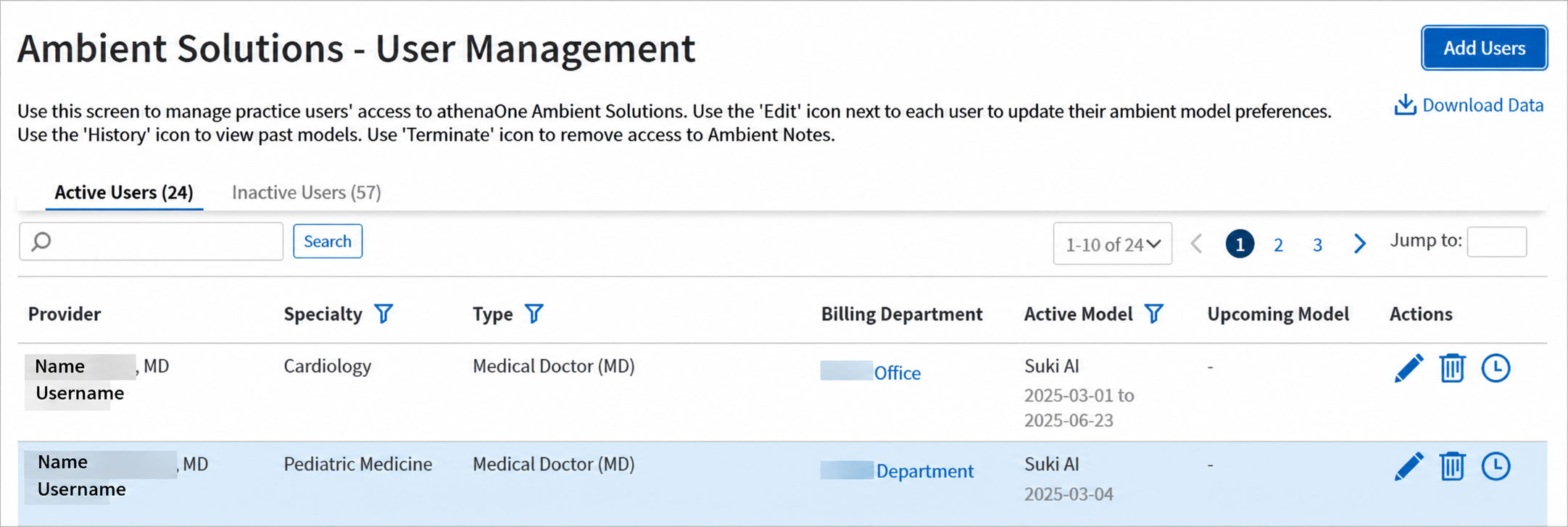
Display the Ambient Solutions - User Management page (
 > ADMIN > Clinicals > Practice Links > Ambient Solutions > User Management).
 -
Click Add Users.
-
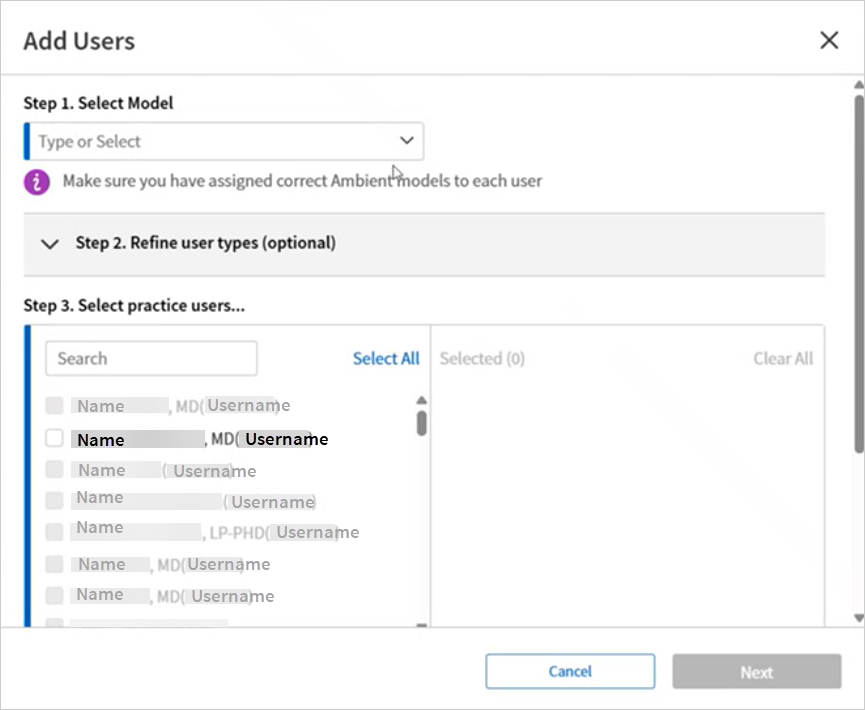
Complete the following sections of the Add Users window:
-
Step 1. Select Model — Choose an ambient model for the selected users.
Note
By default, all generally available ambient models appear in the Step 1. Select Model menu.
If an ambient model is set to be deactivated for your practice within 30 days, the termination date is noted in parentheses so that you can take this information into consideration when assigning models to users.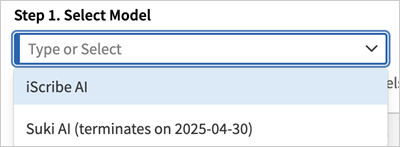
After the termination date, the practice administrator will no longer see that model in the Step 1. Select Model menu when assigning ambient models to clinicians. -
Step 2. Refine user types (optional) — If needed, click the down arrow to expand the section, and then refine the list of users by:
-
Specialties
-
Provider Group(s)
-
Provider Type(s)
-
-
Step 3. Select practice users... — Select the users who want to begin using the Ambient Notes feature with the selected ambient model.
Note
Only Primary Provider usernames from all departments in your practice appear in the list, and users who already have an assigned ambient model cannot be selected in the list. -
Step 4. Enter start date: — Select the date when the users will begin using the ambient model, and if available, enter the associated Case Number (optional).
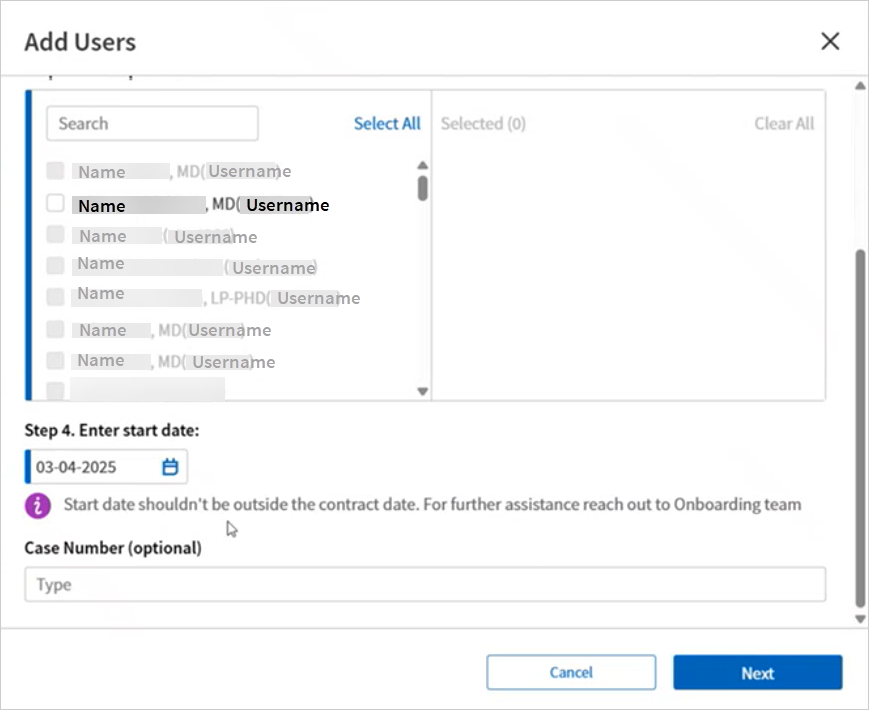
After you select a start date, a message appears to clarify how the selected date will affect the first month of billing.
If you select a start date prior to the 15th of the month, the following message appears:

If you select a start date on or after the 15th of the month, the following message appears:

Note
You can select any start date for a clinician's first ambient model. However, after a clinician is assigned an ambient model:
When switching ambient models, you can only select the last day of a month as the deactivation or termination date and the first day of a month as the start date for another ambient model.
When terminating a user's subscription to an ambient model, you can only select the last day of a month as the deactivation or termination date.
For more information, see How will billing for a clinician’s first month of using the Ambient Notes feature work?
-
-
Click Next.
-
Ensure the following is correct for each user:
-
-
Billing Department — If athenaOne automatically populates this field, ensure it is correct. If the field is incorrect or blank, select the correct billing department.
Note
athenaOne automatically populates the Provider Group field based on the default provider group associated with the user. You cannot edit this field.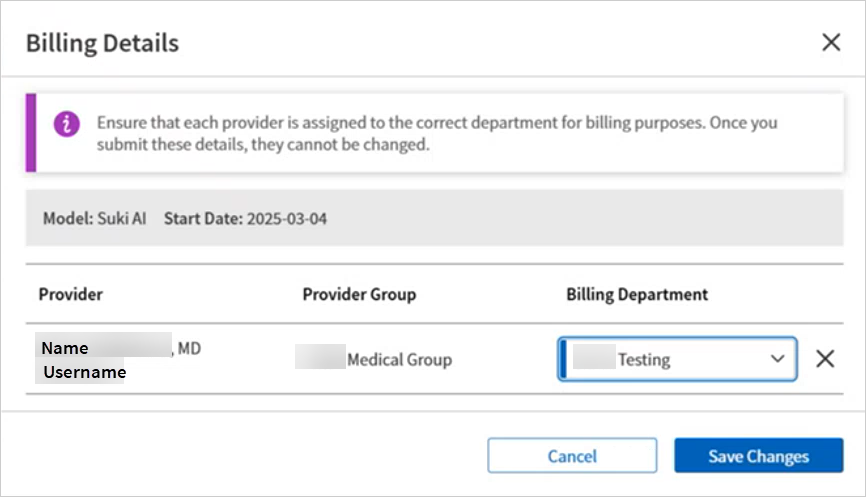
-
-
-
Click Add.
The ambient model is activated for the selected users.
After setup is complete
After Ambient Notes setup is complete, you can make changes and updates to the configurations you've set.
Ambient model management
Upon request, athenahealth can change a practice's model configurations (for example, to add a termination date for a model and to fulfill other requests related to ambient model management).
Ambient Notes user management
Practice administrators can use the Ambient Notes - User Management page to change a clinician's Ambient Notes user configurations (for example, to switch ambient models for a user and fulfill other requests related to Ambient Notes user management). For more information, see the instructions to switch ambient models for a user).
Give feedback
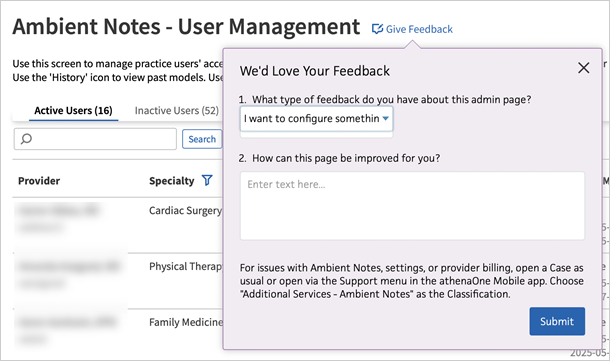
To provide feedback about the Ambient Notes admin workflow, click the Give Feedback link at the top of the Ambient Notes - User Management page.
Note
Please use the Give Feedback link only to provide qualitative feedback about the Ambient Notes admin workflow. If you're experiencing an issue related to the Ambient Notes feature, settings, or billing that you need help resolving, please do not use the Give Feedback form to report the issue; instead, submit a support case: To submit a support case, open the Success Community and click Contact Client Support Center in the Support Cases tile, then enter the details of your issue.
Need help?
Check out the following resources: