Multifactor Authentication for athenaOne Login
Multifactor authentication (MFA) is required for all athenaOne users who do not log in through single sign-on (SSO) and cannot be disabled. This page covers both admin and end user workflows for adjusting your practice’s MFA policy, setting up additional authentication for your account, and managing additional authentication methods for yourself and others.
 What is multifactor authentication (MFA)?
MFA adds a layer of protection for sensitive information in athenaOne by requiring users to provide two or more authentication methods (or “factors”) during login, where one of these methods is their password. MFA is built natively within athenaOne’s login functionality and extends to all applications accepting athenaOne user credentials, including athenaOne Mobile and athenaText mobile apps.
Prompt behavior: To avoid undue friction on clinicians and practice staff, athenaOne’s native MFA does not prompt users on every login. Instead, MFA prompts are based on an automated risk assessment that considers attributes including IP address, physical location (based on IP), device (using a browser cookie), and past login behavior.
For single sign-on (SSO) users: By default, MFA is not required for logins using single sign-on (SSO) because those identity providers may already impose their own MFA requirements. If your practice’s identity provider does not enforce its own MFA, we strongly recommend you enable MFA for SSO logins via the MFA Policy Settings admin page in athenaOne to Settings > Practice Manager > MFA Policy Settings.
For EPCS users: MFA for athenaOne login uses separate authentication methods from the e-prescribing workflow, which requires a user’s athenaOne password (or SSO login) and a one-time passcode using Symantec VIP. EPCS users encounter MFA when logging in to athenaOne same as any other user, for which they must manage additional authentication methods distinct from their Symantec VIP token used when prescribing.
For 1PUN users: Users with one provider username (1PUN) across multiple provider profiles will only have one set of MFA authentication methods. This behavior is consistent with password authentication, where 1PUN users only manage one password for their primary username.
Available MFA methods
For primary authentication, athenaOne either requires a password (if the user knows their password) or a one-time passcode sent to the user’s email address (if the user needs to recover their password). For secondary authentication, athenaOne supports the following MFA methods:
| MFA Method | How It Works |
| Phone | Receive a one-time passcode (OTP) to a user's mobile device via SMS text messaging or an automated voice call, landline or VoIP number |
| Authenticator App (TOTP) | Use a time-based one-time passcode (TOTP) from an authenticator app (e.g., Google Authenticator, Microsoft Authenticator, Duo Mobile). Users can freely download and set up any mobile or desktop app using the TOTP standard with this authentication method. There is no requirement that your organization must have a contractual relationship with the app developer, but you also cannot restrict users to a particular app (although for familiarity, they may prefer to use an app already deployed by your organization). |
| Okta Verify App | Use the Okta Verify mobile app (available on iOS and Android devices) to receive a one-time passcode or push notification. As with other authenticator apps, users are free to use Okta Verify regardless of whether your organization has a contractual relationship with Okta. |
| Passkeys(FIDO2) | Use a passkey to authenticate with a FIDO2-compatible device, such as a smartphone, tablet, computer, or hardware security key (for example, a YubiKey). A passkey combines possession of the enrolled device with device authentication, such as a passcode, fingerprint, or facial recognition. You can only use a passkey from the device (or device keychain, such as iCloud Keychain or Google Password Manager) on which you enrolled it. |
Which authentication methods can be used without a mobile device?
Users without a mobile device can use the following methods:
-
Phone by setting up a landline (e.g., desk phone associated with that user) or a phone number accessed over the internet (least secure option).
-
Authenticator App (TOTP) by setting up a desktop app supporting the TOTP standard (like Ente Auth or Bitwarden), or by recording their setup key and using a TOTP generator.
-
Passkey (FIDO2) by saving their passkey to their computer or to a hardware security key (like a Yubikey).
Note: End user automations (like those configured by athenahealth’s Automation Services team) are likewise compatible with the above mobile alternatives.
Why is email not allowed as an additional authentication method?
Email is not considered by cybersecurity industry standards to be a secure form of secondary authentication because it is so easily shared across multiple devices and individuals, providing little assurance that the person completing email verification is the account owner. Additionally, email is already used for primary authentication when a user forgets their password, where that user still needs to complete secondary authentication (using a method that isn’t their email or password) to access their account.
Available MFA policies
Users may only set up MFA methods allowed by their practice’s MFA policy. Each MFA policy is distinguished by the reliability (e.g., phishing resistance) of methods within that policy to confirm the user’s identity:
-
Lower security: Okta Verify App, Authenticator App (TOTP), Phone (SMS or voice call), Passkey (FIDO2)
-
Medium security: Okta Verify App, Authenticator App (TOTP), Passkey (FIDO2)
-
Higher Security: Passkey (FIDO2)
By default, practices are enabled for the Lower security policy to maximize flexibility, allowing users to set up any supported MFA method.
How do MFA policies apply to users with access to multiple practices?
If an athenaOne user has access to multiple practice IDs, that user is subject to the highest-
security MFA policy enabled by any of those practices, and that user will encounter the same
authentication methods and MFA prompting behavior wherever they use their credentials.
Can you test MFA policy changes in Preview?
Yes, but changes to MFA settings will only apply to users managed in that same athenaOne
environment. Therefore:
-
Updating your MFA policy in Preview (preview.athenahealth.com) will only apply to users created and managed in Preview (i.e., those with usernames containing a “p-” prefix).
-
Production (or live) athenaOne users are unimpacted – even when using those Production athenaOne credentials to log into Preview.
-
Updating your MFA policy in Production athenaOne will apply to users created and managed in Production; including when using those Production credentials to access the Preview environment.
How long does it take for MFA policy changes to take effect?
Most changes submitted through the MFA Policy Settings admin page will take effect within a few seconds, but there are some conditions where it may take minutes or hours for changes to be applied:
-
Your organization has thousands of athenaOne users.
-
Other organizations have simultaneously submitted their own MFA Policy Settings changes for thousands of athenaOne users.
-
There is a service outage preventing changes from being applied.
Pending changes are indicated on the MFA Policy Settings page by a yellow warning icon next to each setting and a progress indicator at the bottom of the page. Once changes are complete, the progress indicator will disappear, and all warning icons will be replaced with a green checkmark.
Administrators: Manage MFA settings for your practice
Access to the MFA Policy Settings page requires the Master User Admin or Coordinator User Admin role. In athenaOne, click on Settings (gear icon) > Practice Manager, search for "MFA” from the left-hand navigation, then click the resulting link for MFA Policy Settings. This takes you to the summary screen for your practice’s MFA policy:
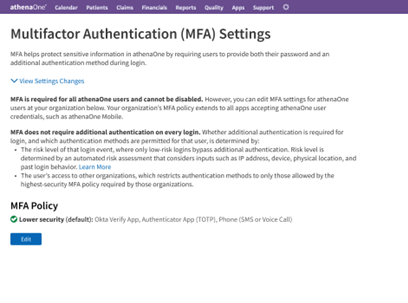
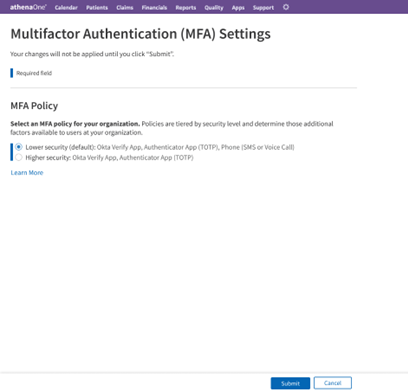
Clicking Edit on the summary view above takes you to the following screen, where you can adjust your practice’s MFA policy to be more accommodating or restrictive of additional authentication methods:
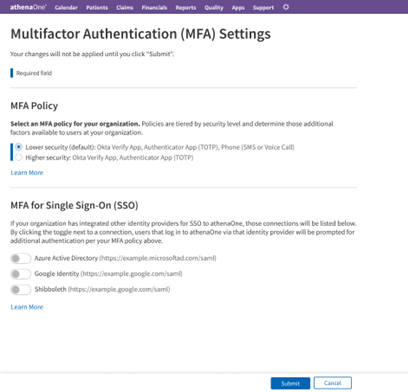
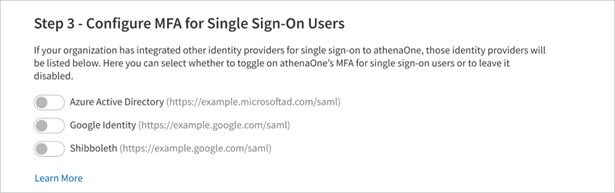
If your practice has one or more identity providers configured for inbound SSO to athenaOne, you will see an additional section letting you toggle on athenaOne’s MFA for those SSO connections. If MFA is enabled for an SSO connection, a user accessing athenaOne via that SSO connection will encounter athenaOne’s native MFA prompts in addition to any MFA already enforced by that identity provider. For this reason, MFA is disabled for all SSO connections and logins by default:
To submit changes to your MFA policy, click Submit at the bottom of the page and complete the confirmation dialog. You will be returned to the summary screen with a progress indicator of your changes being applied:
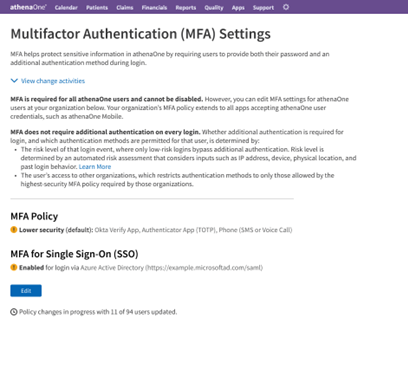
Once your changes have been applied to all users at your practice, the progress indicator disappears, and each alert icon is replaced with a green checkmark.
Customize Support Message:
Adding a custom support message replaces the following default message in the footer area as shown in the following example:
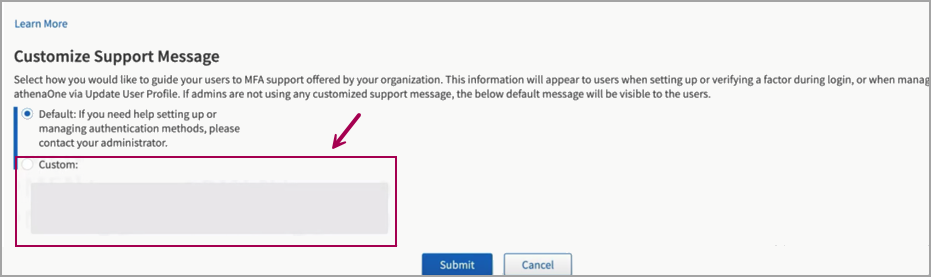
Your support message should contain actionable information on where your practice’s users can receive account support from your organization. For example, your message might direct your users to a specific team, individual, or help line that is capable of resetting their account. There is a 100-character limit for the custom support message to help ensure the message is concise and fits within the user’s login screen.
This is only visible to practices that has practice administrator.
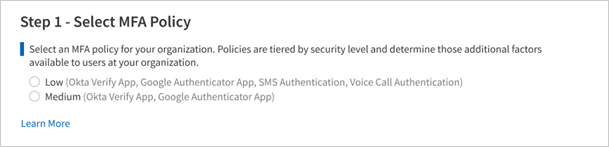
Select MFA Policy
You must first choose the MFA policy that will apply to your users, selecting from either the lower security or higher security tier. As described in the previous section, the selected policy will determine which methods users can choose from when enrolling MFA for their account.
Choose Lower security to allow users to set up additional authentication using any of the following:
-
Okta Verify App
-
Authenticator App (TOTP)
-
Phone (SMS or voice call)
-
Passkey (FIDO2)
Choose Medium security to allow users to set up additional authentication using any of the following:
-
Okta Verify App
-
Authenticator App (TOTP)
-
Passkey (FIDO2)
Choose Higher security to allow users to set up additional authentication using only the following:
-
Passkey (FIDO2)
Configure MFA for Single Sign-On Users
This step applies only to practices that have enabled inbound single sign-on (SSO) to athenaOne from one or more of their own identity providers (i.e., using login credentials managed by the practice instead of an athenaOne username and password) and is hidden for all other practices. If this step is visible, your practice’s enabled SSO connections will be listed here with toggles indicating whether MFA is enabled for users that access athenaOne through that identity provider.
-
If the toggle for an identity provider is left OFF, all users that access athenaOne through that SSO connection will be excluded from your selected MFA policy.
-
If the toggle for an identity provider is turned ON, any users that access athenaOne through that SSO connection will be enabled for your selected MFA policy.
Note
A practice might prefer to leave the toggle OFF for an SSO connection if MFA has been separately implemented and enforced through that identity provider. Otherwise, if the toggle for that SSO connection were turned ON, those users might be prompted twice for an additional factor (once through their identity provider’s MFA policy and again by the practice’s MFA policy in athenaOne) upon login to athenaOne.
To save and apply your MFA policy settings, click Submit at the bottom of the page, then review the confirmation prompt and click Confirm if you are ready to enable MFA for the selected users. If you would instead like to back out or discard your changes, click Cancel at the bottom of the page.

Migrating from one security tier to another may take some time. After you click Submit, you can monitor the migration progress on the same page.
Users: Set up additional authentication for your account
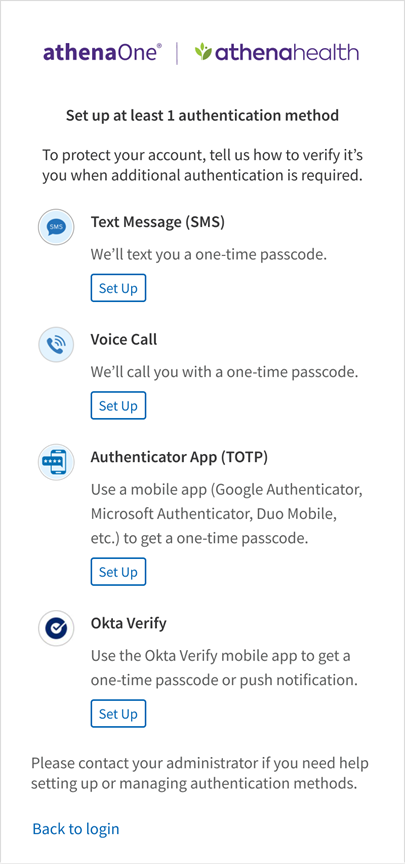
When MFA is enabled for your account, you will be presented with an additional authentication setup page on your next login. This page appears immediately after entering your username and password on the athenaOne login page (or the athenaOne Mobile app, or any other app accepting athenaOne username and password) and requires you to set up at least one authentication method before proceeding into athenaOne.
Important
User’s options for additional authentication will vary based on the athenaOne MFA policy enabled by their practice administrator (refer to Available authentication methods and policies section above).
Users with access to multiple athenaOne practices with competing policies will be subject to the highest-security policy (i.e., that with the fewest additional authentication options) enabled by those practices.
Setup for Phone (SMS or voice call)
Following are the steps that you will perform to set up a phone call as your additional authentication method for athenaOne login:
- On the setup page, click Set Up below the Voice Call Authentication option.
- Select the country code and enter the number in the Phone number field of the mobile phone or landline you would like to use as your additional authentication factor
- If your phone number has an extension, you can provide it in the Extension field.
- Click Send Code to receive a phone call with a one-time code.
- To set up a different authentication method instead, click Choose a different method.
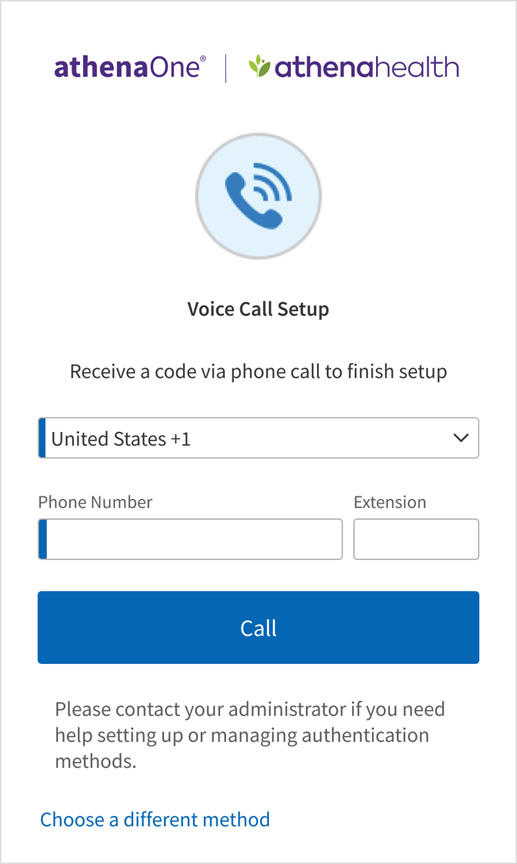
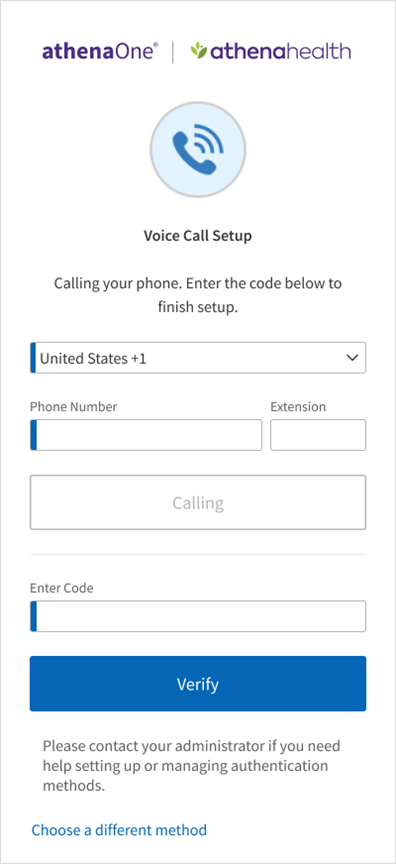
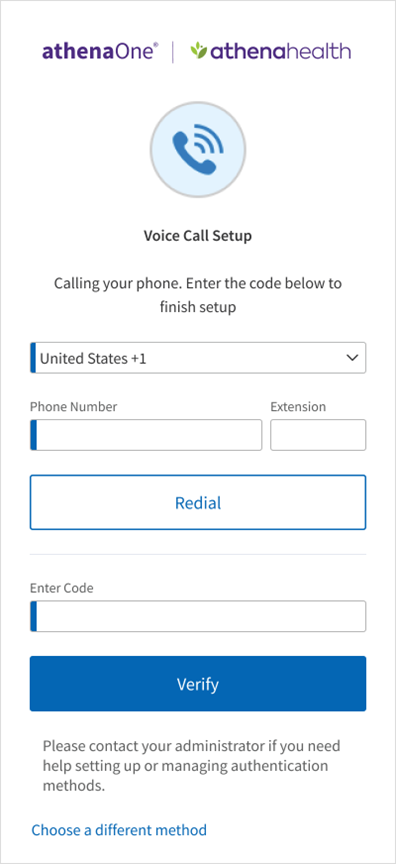
- Answer the phone call and listen for the one-time passcode. If you do not answer this call, you will receive a voicemail with the code instead. Enter this code in the Enter Code field and click Verify. If the code is valid, your authentication is complete, and you will be automatically redirected into athenaOne. If after a minute you have not received a phone call with your one-time code, you will see a prompt to click Redial to receive a new one.
Following are the steps that you will perform to set up text messaging as your additional authentication method for athenaOne login:
- On the setup page, click Set Up below the Text Message (SMS) option.
- Select the country code and enter the number in the Phone number field of the mobile phone you would like to use as your additional authentication method.
- Click Send Code to send a text message with a one-time code to your phone number.
- To set up a different factor instead, click Choose a different method.

- Open the text message with your one-time code on your mobile phone, then enter this code in the Enter Code field and click Verify. If the code is valid, your setup is complete. If after a minute you have not received a text message with your one-time code, you will see a prompt to click Re-Send Code to receive a new one.

Verification using Phone (SMS or voice call)
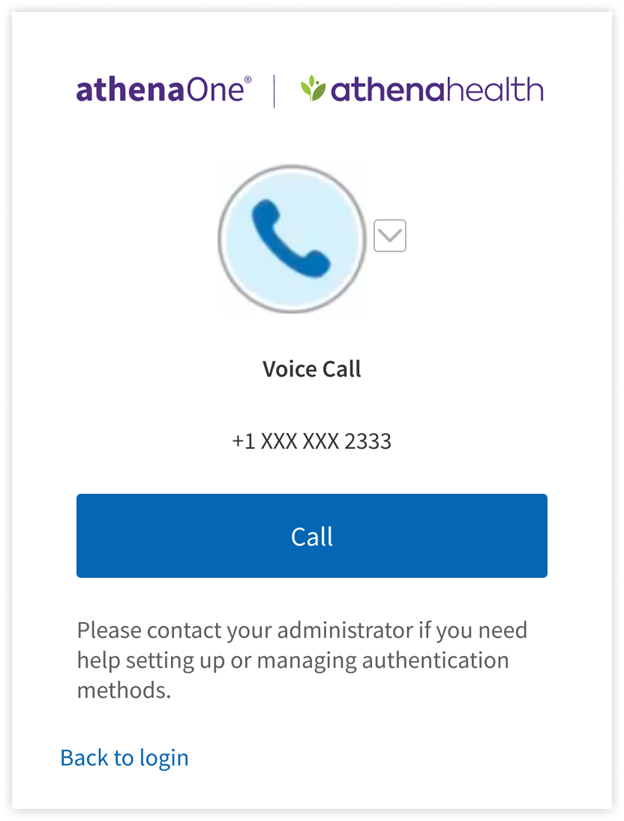
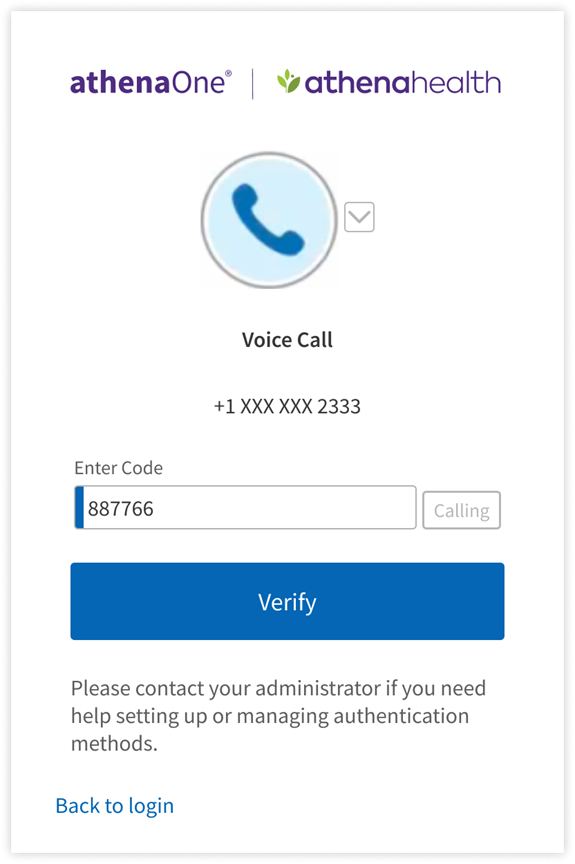
If you have previously set up Voice Call for additional authentication and are prompted for MFA upon login, you can complete authentication by clicking Call to receive a phone call at the number you originally used to set up your voice call factor, for which the last four digits are shown on your screen. If you do not answer this call, you will receive a voicemail. Enter the code received in that call or voicemail in the Enter Code field and click Verify to be redirected into athenaOne.
If you have previously set up Text Message for additional authentication and are prompted for MFA upon login, you can complete authentication by:Click Send Code to receive a text message at the mobile number you originally used to set up your SMS factor, for which the last four digits are shown on your screen.

Enter the code received in that text message in the Enter Code field and click Verify to be redirected into athenaOne.

3. If you have previously set up multiple authentication methods, you can click the toggle next to the Text Message (SMS) icon to choose another method for authentication.
Setup for Authenticator App (TOTP)
Following are the steps that you will perform to set up a time-based one-time passcode (TOTP) authenticator app as an additional authentication method for athenaOne login:
- On the setup page, click Set Up below the time-based Authenticator App option. Follow the onscreen instructions to open the Authenticator App (TOTP) (you will need to download an authenticator app if you have not done so in the previous step) and scan the QR code with your device’s camera. If you can’t scan a QR code or your device does not have a camera, click Can’t scan? below the QR code to complete setup another way. To set up a different authentication method instead, click Choose a different security option.
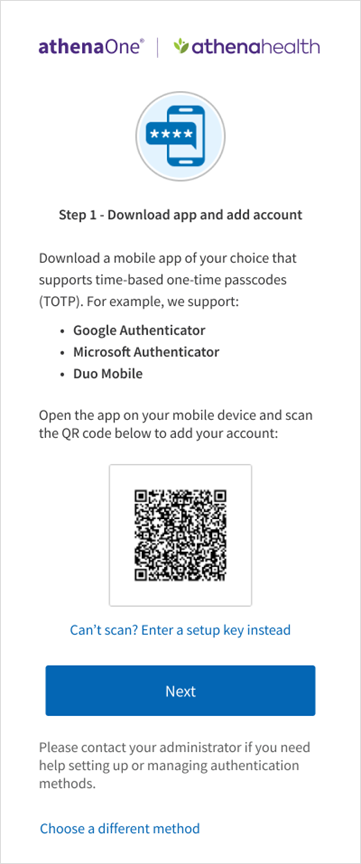
- To set up authenticator app (TOTP):
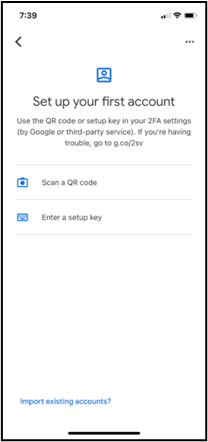
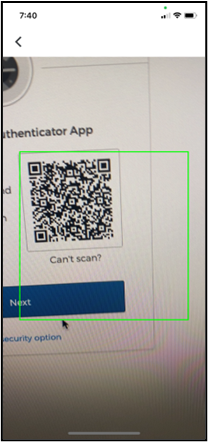
- Using the QR code - open the authenticator app on your desktop or mobile device. While many apps are compatible with this TOTP method, the following screens use Google Authenticator as an example. When prompted to add an account, tap Scan a QR code to open your device’s camera to scan the QR code. When your device recognizes the QR code, it will automatically show the account as added in the Authenticator app.
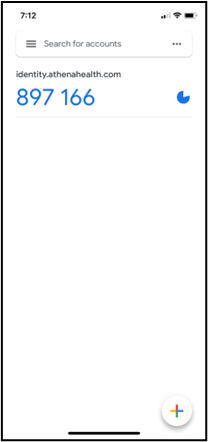
- If you instead clicked Can’t scan? to activate your authenticator app on a desktop or mobile device without a QR code, you are presented with a setup key. Open the authenticator app on your desktop or mobile device and when prompted to add an account, tap Enter a setup key. Enter a label of your choice (e.g., “athenaOne”) in the Account field, and enter the setup key in the Key field. The setup key is not case-sensitive, so you can ignore capitalization. Tap Add to show your account as added in the Authenticator app.
In the authenticator app on your desktop or mobile device:
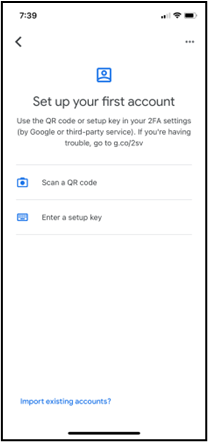
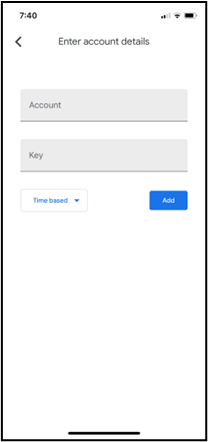
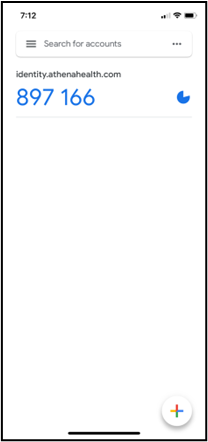
On the device from which you’re logging in to athenaOne:

3. On the device on which you are logging in to athenaOne, click Next. A field will appear to input the one-time code generated by your authenticator app. You must be quick to input this code on the device on which you’re logging in to athenaOne. Enter a valid code in the Enter Code field and click Verify to complete setup.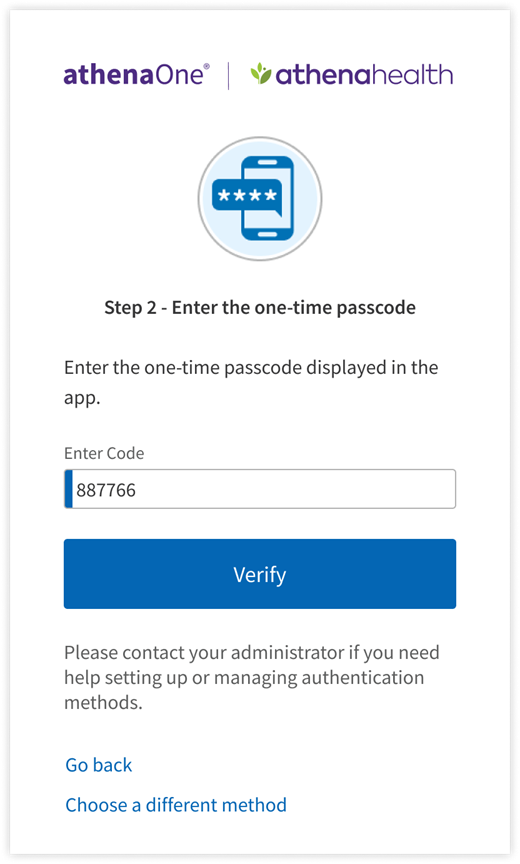
Verification using Authenticator App (TOTP)
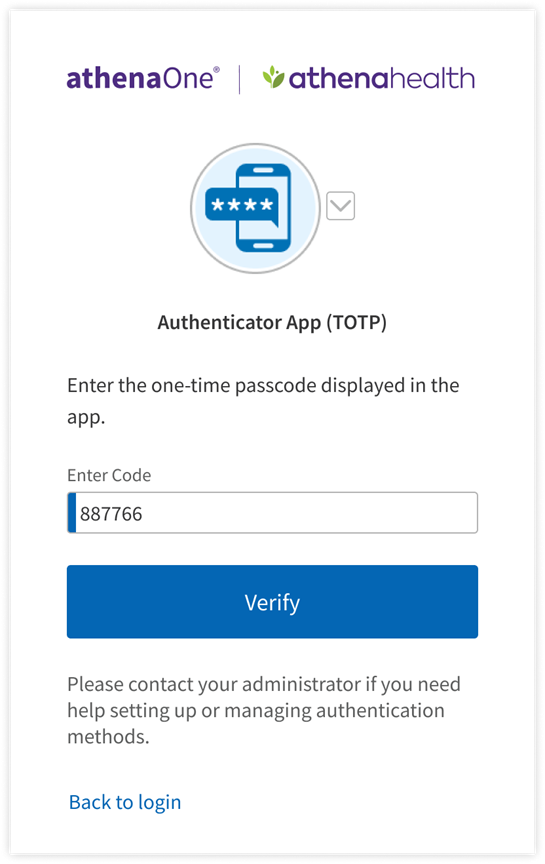
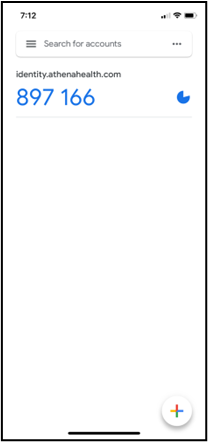
If you have previously set up Authenticator App (TOTP) as an additional authentication method and are prompted for MFA upon login, you can complete authentication by opening your authenticator app on your desktop or mobile device, then entering the one-time passcode generated by your authenticator app in the Enter Code field. This code changes every 30 seconds (as indicated by a circular progress indicator to the right of the code) and will expire and not be accepted for authentication once a new code is generated. Therefore, you must be quick to input this code on the device on which you’re logging in to athenaOne. Enter a valid code and click Verify to complete authentication and get redirected into athenaOne. If you have previously set up multiple authentication methods, you can click the toggle next to the Authenticator App (TOTP) icon to choose another method for authentication.
On the device from which you’re logging in to athenaOne:
In the authenticator app on your desktop or mobile device:
Setup for Okta Verify App
Following are the steps that you will perform to set up Okta Verify as an additional authentication method for athenaOne login:
- On the setup page, click Set Up below the Okta Verify App option.
- Select the type of device – iOS or Android – on which you will install and use the Okta Verify app for additional authentication, then click Next. To set up a different authentication method instead, click Choose a different security method.
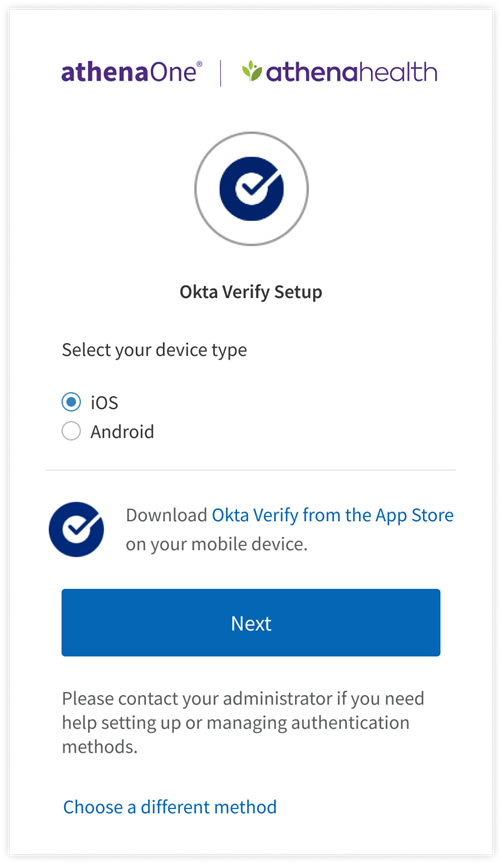
- Follow the onscreen instructions to open the Okta Verify app (you will need to download the app if you have not done so in the previous step) and scan the QR code with your mobile device’s camera.
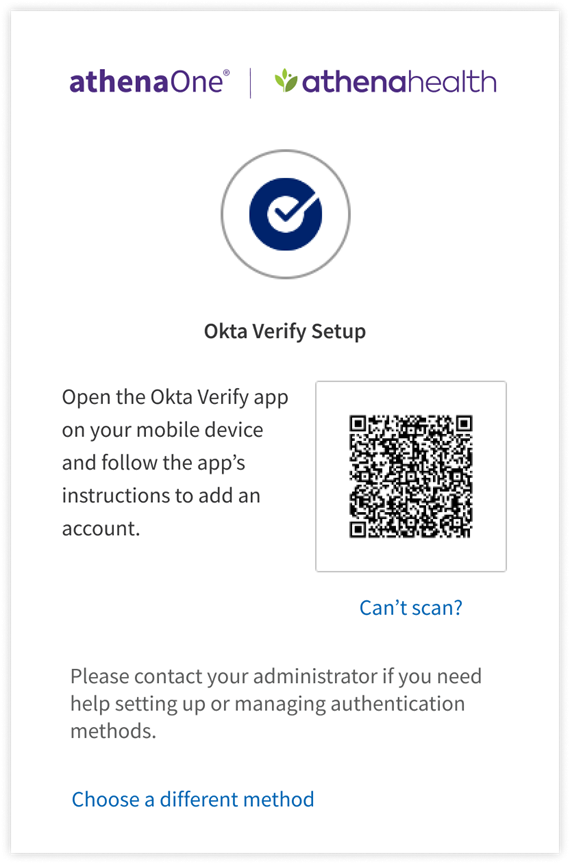
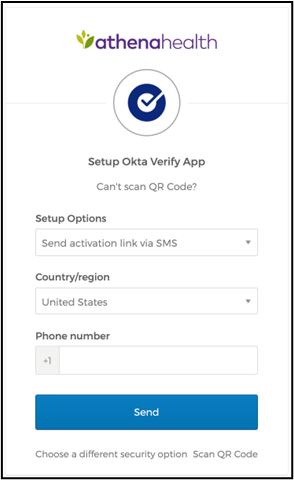
- If you can’t scan a QR code or your device does not have a camera, click Can’t scan? below the QR code to finish Okta Verify setup another way.
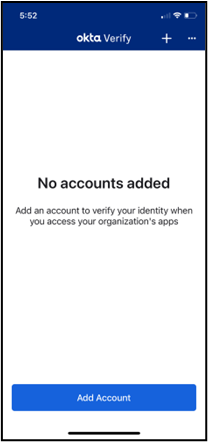
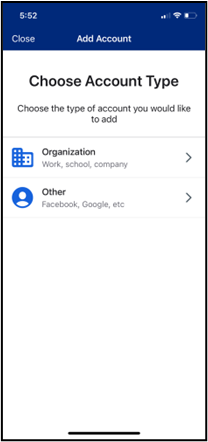
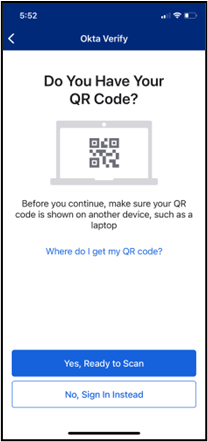
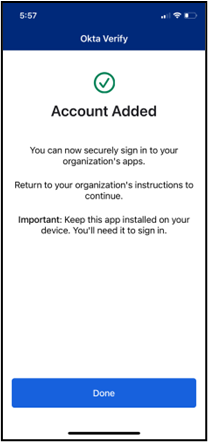
- To set up Okta Verify using the QR code, open the Okta Verify app on your mobile device, tap Add Account, choose Other as your account type, and then tap Yes, Ready to Scan to open your device’s camera to scan the QR code. When your device recognizes the QR code, it will automatically show the account as added in both the Okta Verify app and the device on which you are logging in to athenaOne.
On your mobile device:
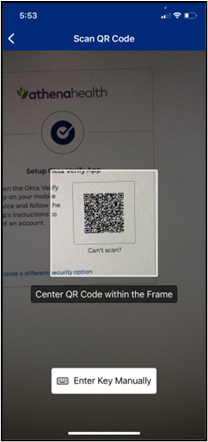
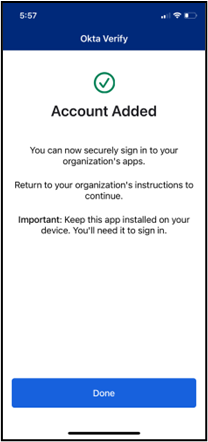
On the device from which you are logging in to athenaOne:
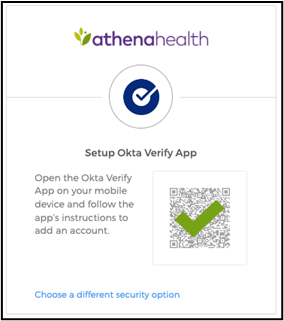
The above image will briefly display to indicate the Okta Verify app has been activated on your device and your authentication method setup is complete.
- If you instead clicked Can’t scan? to activate Okta Verify on your mobile device without a QR code, select from the Setup Options drop-down menu to choose your method, complete any required fields, then click Send; a link will be sent by the chosen method to your mobile device. Tap the link to automatically open and activate the Okta Verify app, to complete your factor setup.
On the device from which you are logging in to athenaOne:
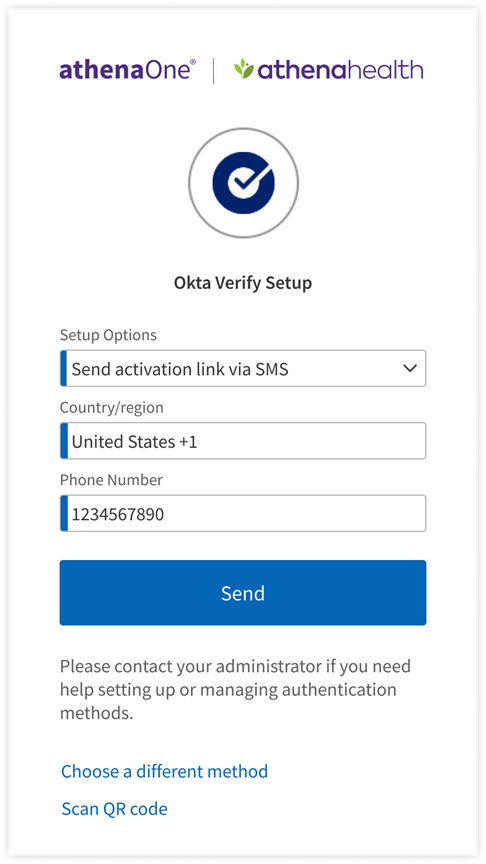
On your mobile device:
Verification using Okta Verify App
If you have previously set up Okta Verify App as an additional authentication method and are prompted for MFA upon login, you can complete authentication with the following steps:
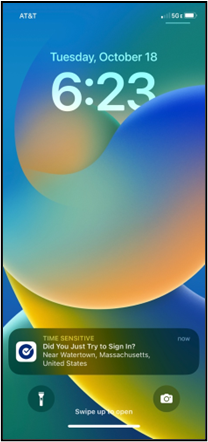
- Click Send Push to receive a notification on the mobile device you originally used to set up Okta Verify.
- If you cannot or prefer not to receive a push notification, click Or enter code to manually input the one-time code shown in your Okta Verify app.
- If you have previously set up multiple authentication methods, you can click the toggle next to the Okta Verify icon to choose another method for authentication.

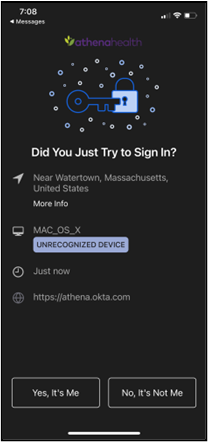
- If you click Send Push, you can complete authentication on your mobile device by tapping the notification and, when redirected to the Okta Verify app, tapping Yes, it’s Me.
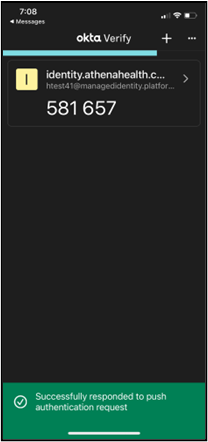
- On your mobile device a pop-up appears at the bottom of your screen indicating successful authentication. Setup is now complete, and you can proceed with login on the device you are using to access athenaOne.
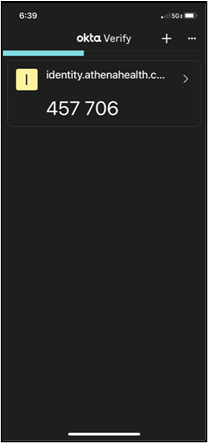
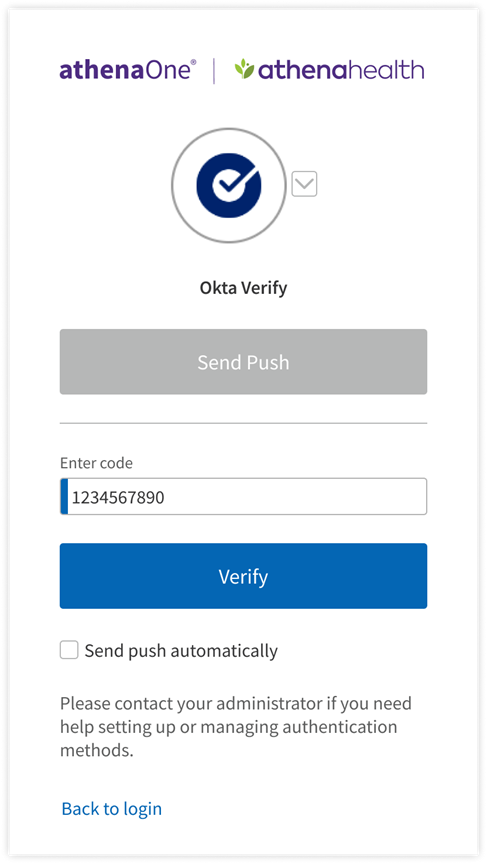
- If you click Or enter code, a field will appear to input the one-time code generated by your Okta Verify app. This code changes every 30 seconds (as indicated by a progress bar at the top of the app window) and will expire and not be accepted for authentication once a new code is generated. Therefore, you must be quick to input this code on the device on which you’re logging in to athenaOne. Enter a valid code in the Enter Code field and click Verify to complete setup.
In the Okta Verify app on your mobile device:
On the device from which you’re logging in to athenaOne:
Setup for Passkey (FIDO2)
Following are the steps that you will perform to set up a Passkey (FIDO2) as your additional authentication method for athenaOne login:
On the setup page, click Set Up below the Passkey (FIDO2) option.
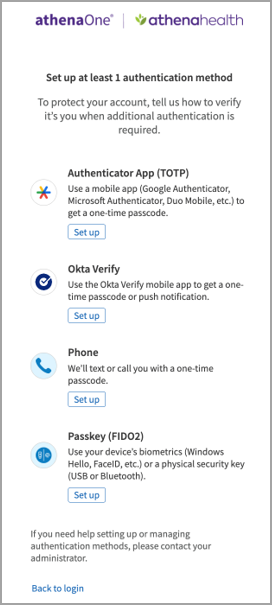
You will be shown a brief overview of the Passkey (FIDO2) method and supported options, such as:
-
A camera-enabled smartphone or tablet (for QR code scan)
-
iCloud Keychain
-
Chrome profile (Google Password Manager)
-
Windows Hello
-
USB or NFC security key (e.g., Yubikey)
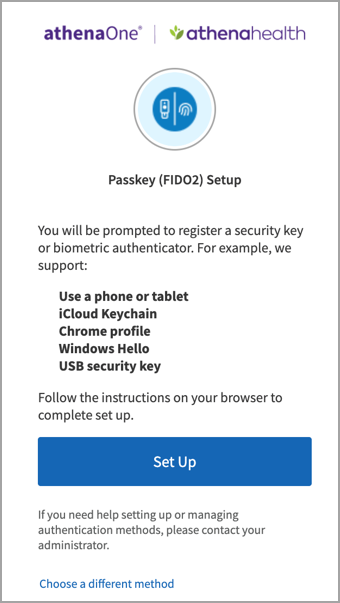
To proceed, click Set Up and follow your browser’s prompts and supported methods for creating a passkey. These prompts will appear differently based on whether you are accessing athenaOne via web or mobile, as well as your specific device, browser, and settings; see examples below:
On web:
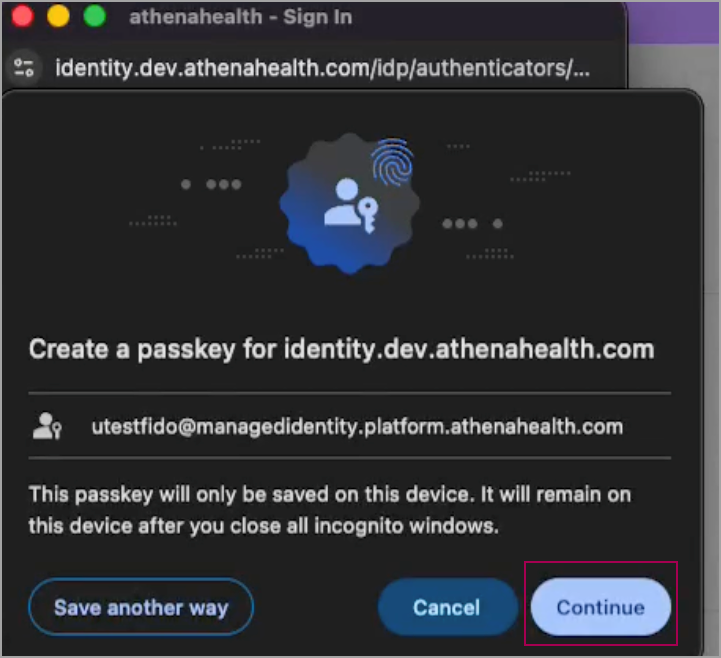
The screenshots below are for a user in their Chrome browser on a macOS device that supports TouchID. In this example, the user can click Continue to use their device and TouchID as their passkey, or they can click Save another way to choose from other passkey options supported by that device and browser:
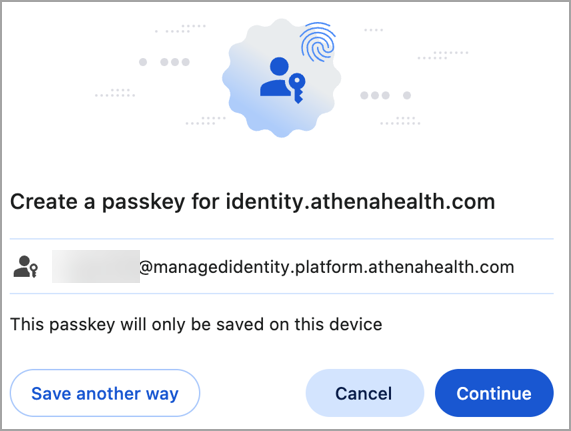
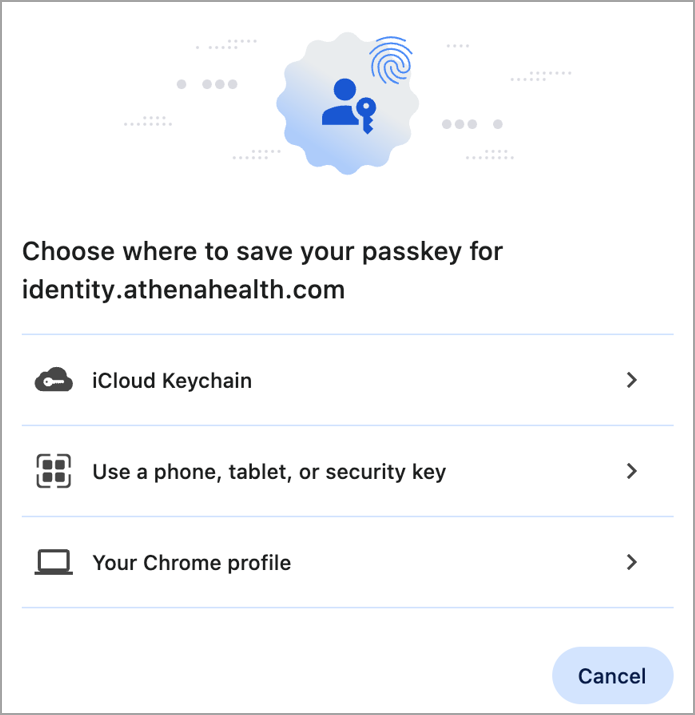
Once you complete setup through your browser, your passkey will be saved to your athenaOne account as an MFA method and you’ll be redirected back to athenaOne to continue login.
On mobile (athenaOne Mobile on iOS):
The screenshots below are for a user in the athenaOne Mobile iOS app on an iPhone that supports FaceID.First, the user is prompted to set up an MFA method and clicks Set Up under the Passkey (FIDO2) option:
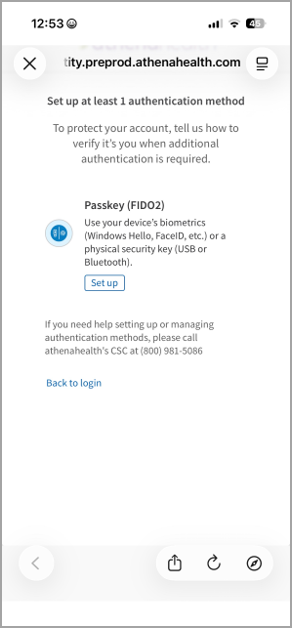
Next, they tap Set Up on the introductory screen and follow their browser’s prompts to set up one of your device's supported passkey methods to complete the setup.
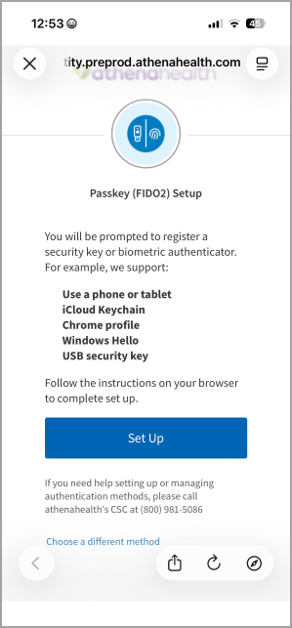
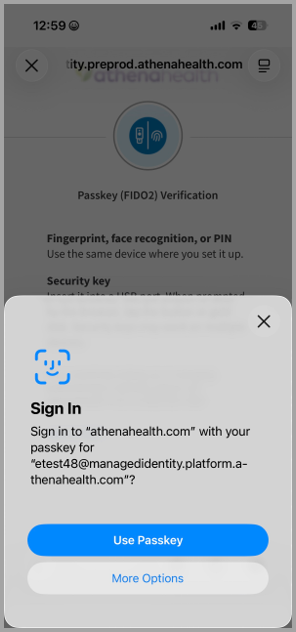
If you experience issues setting up or signing in with a passkey (FIDO2), see Troubleshooting Guide for Passkeys (FIDO2).
On mobile (athenaOne Mobile on Android):
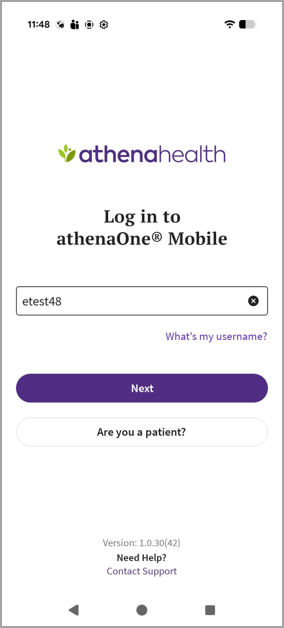
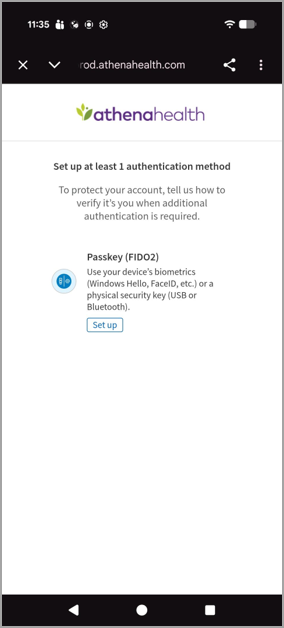
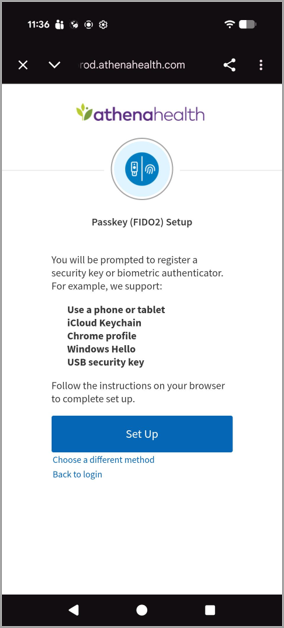
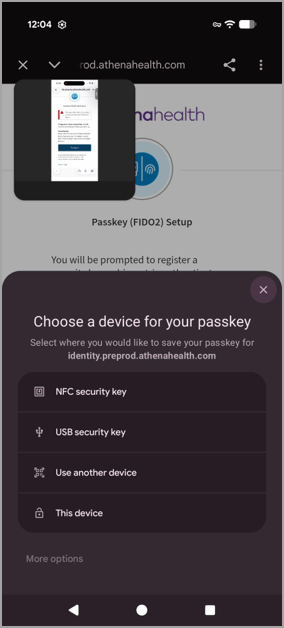
When prompted, you must choose This device when saving your passkey on your Android device. Use another device does not work for passkey re-use in Android apps.
Adding a Passkey via User Profile
-
Navigate to User Profile → Authentication and click Set up to add the Passkey (FIDO2) authentication method to your account.
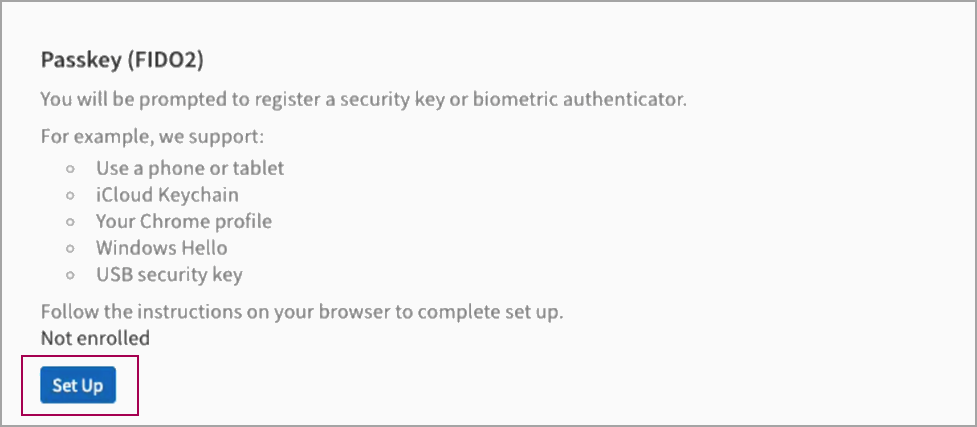
Ensure that pop-ups are enabled for the site before setting up a passkey.
Clicking Set up opens a pop-up window where you can complete the configuration.If you click outside the pop-up window during the FIDO2 setup process, the window will close and the setup will not be completed.
-
Click Set up as shown in the following example:
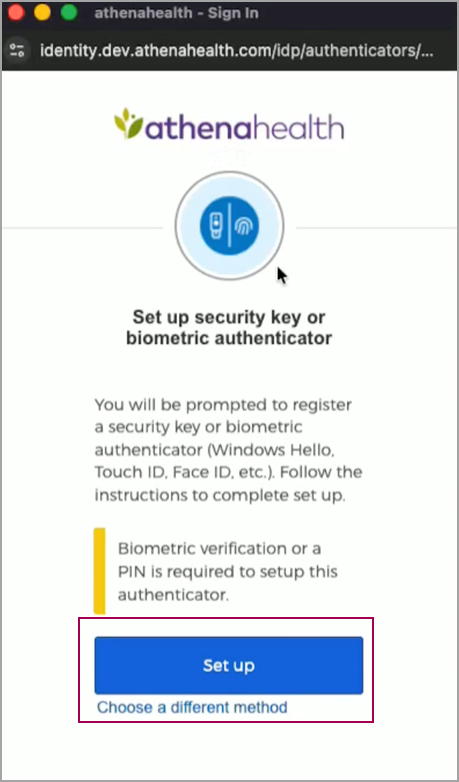
Once you click Set up, your web browser (e.g., Chrome or Safari) will display a prompt similar to the one below, asking you to choose your passkey from the options supported by that browser and device:
-
After the setup is complete, the following notification appears:
Your passkey (FIDO2) has been set up successfully. If you do not complete the browser prompts to set up your passkey within 5 minutes, a session timeout error will be displayed instead.
Click updated relogin experience for athenaOne web sessions to read about the new session timeout experience.
What is a passkey?
A passkey is any physical authenticator using the widely available FIDO2 technology standard, which combines proof of possession (you must physically have the enrolled device) with proof of knowledge or inherence (you must have the passcode, thumbprint, or face needed to unlock that device). Most modern smartphones, tablets, and computers, as well as hardware security keys (e.g., a YubiKey), can act as a passkey. Passkeys are tied to the device used to enroll, so you can only use that passkey if you have the device on-hand or are accessing athenaOne through that same device.
Why should I use a passkey?
Passkeys are more secure than other MFA methods. They are not susceptible to phishing scams because they do not rely on one-time passcodes that can be accidentally shared with bad actors over the internet or over the phone. You must be in physical possession of the passkey itself, and you must be capable of unlocking that device if it has a passcode or biometrics enabled. Additionally, passkeys are often more convenient than other MFA methods if your passkey uses biometrics (e.g., Face ID) or allows you to tap or insert a hardware security key (e.g., YubiKey) vs. waiting to receive and type in a code.
Which devices and browsers support passkeys?
You can only set up or use the Passkey (FIDO2) method if your device has one of the following operating system versions and you are accessing athenaOne through a browser that meets athenaOne Technical Requirements:
-
iOS 16 or higher (iPhone)
-
iPadOS 16 or higher (iPad)
-
macOS Ventura or newer (Mac)
-
Android 9 or higher with Google Play Services
-
Windows 10 or higher
Devices meeting the above requirements can be used as passkeys themselves (i.e., your passkey is saved on the same device you’re using to access athenaOne), or they can communicate with another device supporting the FIDO2 standard (e.g., if you want to keep your passkey separate from your device used for athenaOne access) where you can authenticate using a QR code scan, NFC, or USB connection. The latter is recommended for users on shared workstations, who can set up their smartphone (using a QR code scan) or a physical security key (e.g., a YubiKey or Google Titan fob plugged in via USB) as their standalone passkey.
What happens if I lose the device with my passkey?
How you recover your account depends on where you saved your passkey and what other MFA methods you have enrolled in:
| If... | Then... |
|
If you are still able to access athenaOne (for example, by using a backup MFA method you had previously enrolled) |
Then, navigate to Settings > User Profile, click the Authentication tab, and remove the passkey associated with your lost device. You can also set up a new passkey for a current device through this screen |
| If your passkey is saved to your device keychain (e.g., your iCloud Keychain or Google Password Manager) |
Then, you can still use that passkey to access athenaOne by logging in using another device (like your phone or tablet) signed into that keychain. |
| If you cannot access your passkey on any other device (e.g., your passkey was a hardware security key or was not saved to a keychain) and you do not have a backup MFA method |
Then, you will need to contact your practice admin to reset your authentication methods. Once your admin has navigated in athenaOne to Settings > User > Users, clicked your username and Security tab, and removed all authentication methods from your account, you can log in to athenaOne with your password and will be prompted to set up new authentication methods for your account. |
Can I use multiple devices with the Passkey (FIDO2) method?
Yes, either by setting up multiple instances of the Passkey (FIDO2) authentication method, each time on a different device, or by setting up a single passkey that is saved to your device keychain (e.g., iCloud Keychain or Google Password Manager), if you have one. Whenever possible, we recommend setting up MFA methods for your athenaOne account on multiple devices so you have a backup.
Is my biometric data stored in athenaOne?
No. Your passkey’s biometric data stays on your device and is never shared.
What hardware security keys does athenahealth recommend?
Yubico is the industry-leading vendor in providing dedicated security keys (fobs) supporting the FIDO2 standard. All current models of their flagship YubiKey product can be used for setting up the Passkey (FIDO2) authentication method in athenaOne, but each varies in its connection type (USB-A, USB-C, NFC), on-device authentication method (tap, 4-digit PIN, or fingerprint), federal certifications (FIPS), and price point (generally between $20 and $100 per fob, depending on model and subscription or volume discounts). We recommend considering your practice’s demand, workstation setup, and future credentialing requirements (e.g., only FIPS models would be permitted for EPCS authentication) when making purchasing decisions around YubiKeys or other physical security keys.
Can I set up a passkey on a shared device?
You should not save your passkey on a public device or where it can be accessed by multiple users. You should only save a passkey to a shared device if that device uses separate profiles and authentication for each user (e.g., each user must log in to that device with their own credentials). However, if you saved your passkey to a separate smartphone, tablet, or hardware security key, you can use that passkey during login, regardless of where you’re accessing athenaOne. For example, if you access athenaOne through a shared device, you could complete the Passkey (FIDO2) MFA challenge using the QR code option with a passkey previously saved to your smartphone, or by plugging in a Yubikey you previously saved as a passkey.
Users: Manage your additional authentication methods
You can add or remove your additional authentication methods by navigating to athenaOne > Settings > My Configurations | User Profile > Update User Profile page > Authentication tab.
- The authentication methods that you have already set up will have a
 .
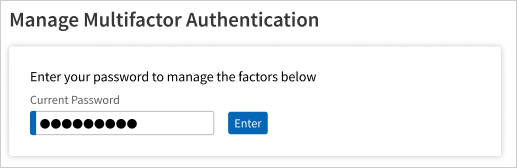
. - To make changes to your authentication methods, enter your current password in the provided field to verify your identity.
- After verification of your password, you can update/set up the factors for your account.
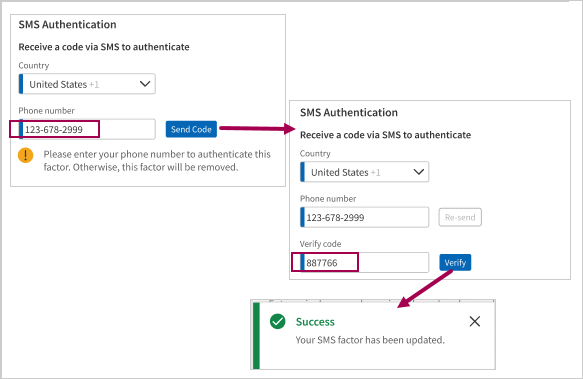
To update Text Message (SMS)
- Select Country, enter the required Phone number, and click Send Code.
- Enter the code received through SMS in the Verify Code field and click Verify.
To update Okta Verify App
- Open the app on your mobile device and follow the app’s instructions to add an account.
- Once you have added the new account, you can delete the old one as it will no longer be accepted for authentication.
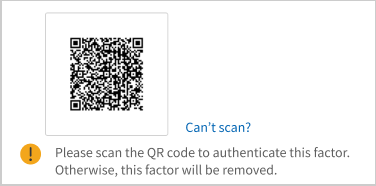
- Scan the QR code to authenticate this factor.
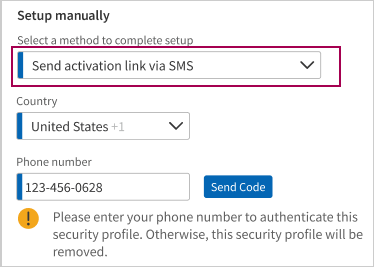
- You can choose to update manually as shown below.
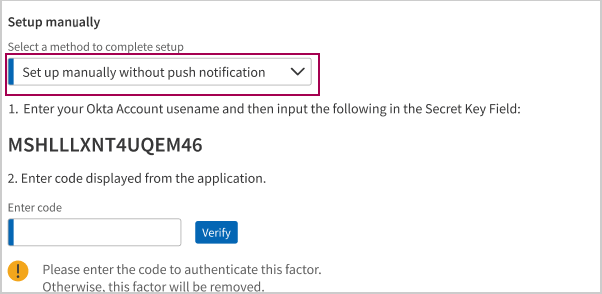
- You can choose to update by receiving an activation link via SMS as shown below.
To update Authenticator App (TOTP)
- Open the authenticator app on your mobile device and follow the app’s instructions to add an account.
- Once you have added the new account, you can delete the old one as it won’t be accepted.
- Scan the QR code to authenticate this factor.
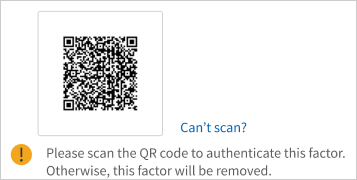
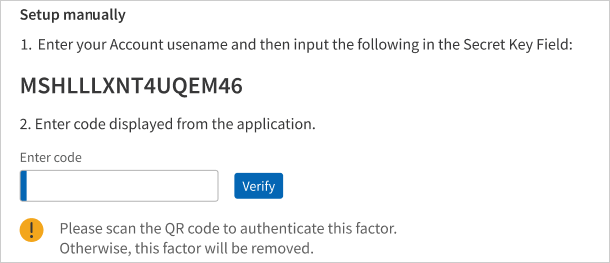
- You can choose to update manually as shown below.
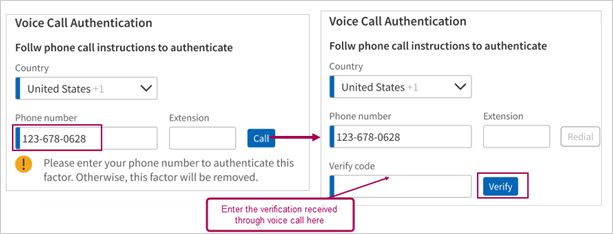
To update Voice Call
- Select Country, enter the required Phone number, and click Call.
- Enter the code received through call in the Verify Code field and click Verify.
Administrators: Remove an authentication method for another user
If you are a User Admin, you will be able to view and reset authentication methods for other users at your practice. To do this, you can navigate to athenaOne >  > Admin | User > Users > User Admin page.
- Search for the user whose factors you want to view or reset.
- Click on Update next to the user's name.
- In this page under the Security tab, you can now view the Active Multifactor Authentication section which lists all the factors enabled for that user.
- You can click on the trash can next to the factor which you want to remove for that user.
- When you attempt to remove the last enrolled factor for a user, you will be prompted to confirm your action because user will be required to set up at least one factor on their subsequent login.
If your practice has one or more identity providers configured for inbound SSO to athenaOne, you will see an additional section letting you toggle on athenaOne’s MFA for those SSO connections. If MFA is enabled for an SSO connection, a user accessing athenaOne via that SSO connection will encounter athenaOne’s native MFA prompts in addition to any MFA already enforced by that identity provider. For this reason, MFA is disabled for all SSO connections and logins by default.