 Quick Reference — To resolve a document with a missing paper form
An Rx/Order is not faxed without a corresponding paper form for the order type.
To resolve this issue, use the Order Routes page to attach the paper form to the order route.
- Display the
Order Routes page: On the Main Menu, click Settings
 > Clinicals. In the left menu, under Practice Links — Order Configuration, click Order Routes.
 - Click Edit for the order route you need.
Additional fields appear. - Clinical order form — Select the clinical paper form on which the orders will be printed. (These forms are administered using the Clinical Paper Forms page.)
- Click Save.
After the order route has been updated, return to the document and resubmit it.
- Scroll down to the very bottom of the screen, just above the Save and Cancel buttons, and click view actions.
- If the Resubmit button is not visible, click more actions.
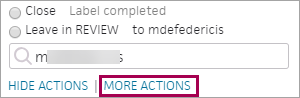
- Select the Resubmit option, and click Save.
Best practice: You can use the Task Assignment Overrides page to route to documents to delegated users automatically.
 Related Topics