Care Section
This resource provides information on managing care programs and patient statuses from the Care section.
For complete details on creating and maintaining a care plan, see User Guide — athenaClinicals Care Plan.
 How do I get to this section?
In the patient chart, click the Care tab on the left side of the page.
User access and permissions
To access the patient care plan, you must have the Clinicals: Edit Chart role or permission.
Step-by-step instructions
To apply a care program status for one patient
Use this workflow when you need to update the care program status for one patient. To assign multiple patients to a care program at one time, use the import workflow on the Care Programs Panel.
- In the patient chart, click the Care tab.
- In the Care Programs section, click
 to open the expanded view. The expanded view displays a list of all global and local care programs a patient is a part of.
 - Locate the care program in the Program Name column.
- From the Status menu for the care program, select one or more statuses that apply to the patient. Your changes apply automatically.
To document CCM consent and enrollment
From the Care Programs section in the Care tab, you can document a patient's consent and their enrollment status for the CCM program.
-
In the patient chart, click the Care tab on the left side of the page.
- In the Care Programs section of the Care tab, click the view more icon to open the expanded view.
- On the Chronic Care Management program, click Show History (or click anywhere on the program) to expand the program details.
- Status — Select an option from the predefined list of statuses. Your changes apply automatically. The most recent status selection and change date appear for the care program in the Care Programs section.
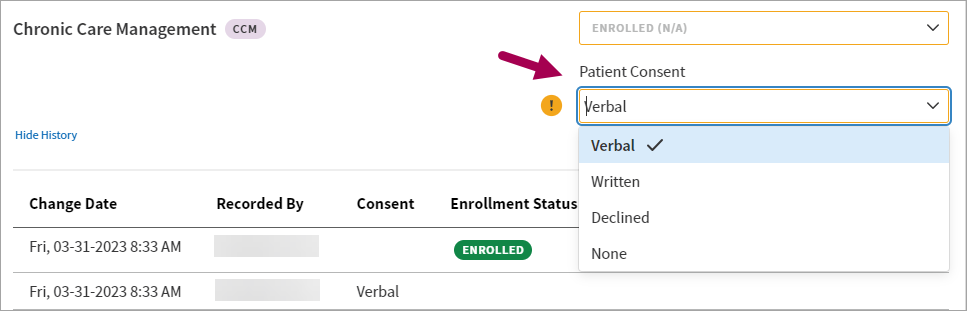
- Patient Consent — Select the method of consent.
Note: For CCM, you can also use the patient's Quickview to document the patient's consent and enrollment statuses. In the Insurances section of Quickview, under Eligibility, click Update status/view history next to Chronic Care Management. This page includes the Enrollment status and Consent status fields.
Features and workflows
Care plan
To help a patient prevent or better manage an illness, care managers can create a care plan in athenaClinicals. A care plan helps you manage care-related events and goals for a patient and enables collaborative patient-centered care in athenaClinicals. You can document care management interactions and maintain patient care plans in athenaClinicals.
For complete details on creating and maintaining a care plan, see User Guide — athenaClinicals Care Plan.
Care programs
The Care Programs section displays global and local care programs that the patient is part of. Expand this section to review the patient’s care program statuses, apply one or more statuses for a specific program, and view status history.
To assign multiple patients to a care program at one time, use the import workflow on the Care Programs Panel.
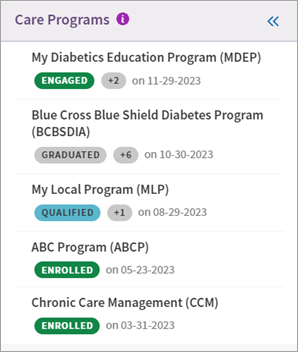
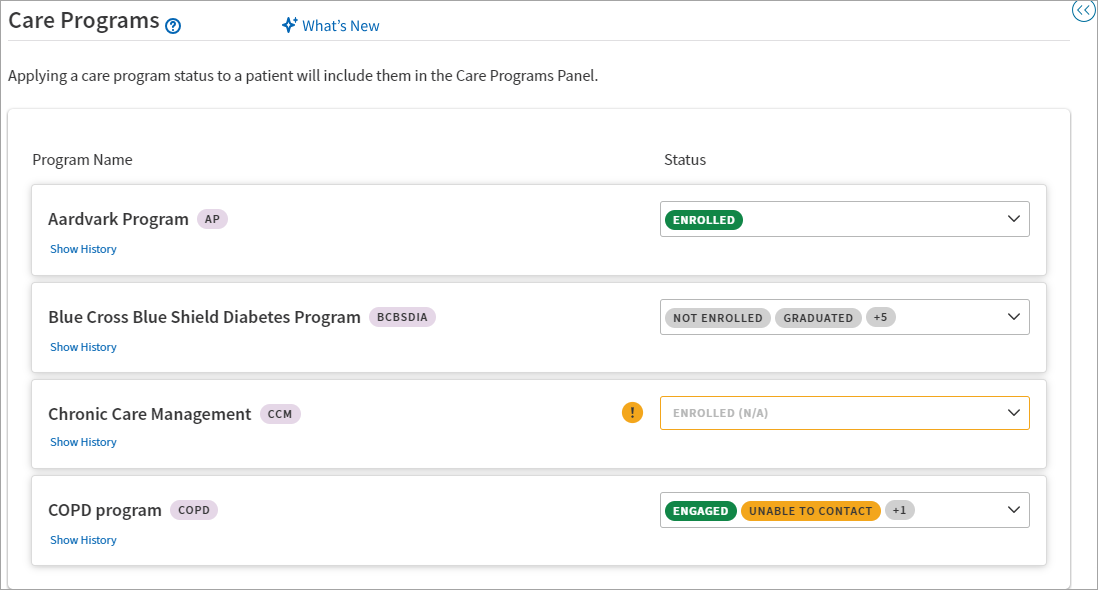
When you click , the expanded view displays one row for each global or local care program the patient is part of.
Tip: Hover over the image to see an expanded view.
- Program Name — Displays the name of the global or local care program.
-
Status — Displays the statuses selected for the patient’s relationship to the care program. From the Status menu, care managers can select one or more statuses that apply to the patient for that program.
-
Show History — Displays the status history for the care program.
Use this workflow when you need to update the care program status for one patient.
- In the patient chart, click the Care tab.
- In the Care Programs section, click to open the expanded view. The expanded view displays a list of all global and local care programs a patient is a part of.
- Locate the care program in the Program Name column.
- From the Status menu for the care program, select one or more statuses that apply to the patient. Your changes apply automatically.
To expand the details of a care program and view the status history, click Show History or click anywhere on the program. The expanded view of a program displays the following:
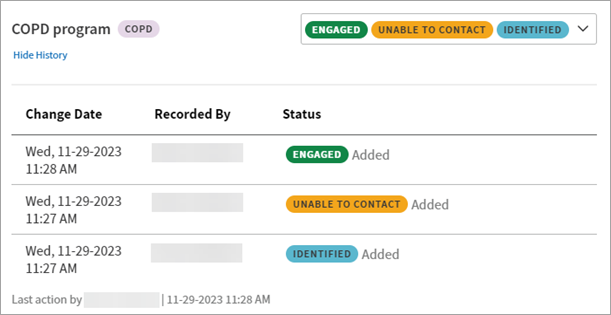
- Change Date — The date and time the program was last modified.
- Recorded By — The name of the user who last modified the program.
- Status — The status that was added or removed.
- For CCM only, a Patient Consent field and Consent status history appear in the expanded view.
To view the full program status history, click View more records. The status history list expands to show the additional records.
CCM consent and eligibility tracking
Document consent and enrollment for CCM
For patients enrolled in care programs, care teams need to understand a patient's consent status so they can engage appropriately with that patient. Additionally, some programs (such as Chronic Care Management) require patient consent to bill for services.
From the Care Programs section in the Care tab, you can document a patient's consent and their enrollment status for the CCM program.
Note: Your practice can activate Chronic Care Management from the Care Program Configuration page. See Quick Reference — To make a care program active or inactive or Care Program Configuration for more details.
In the Care Programs section, click to open the expanded view.
On the Chronic Care Management program, click Show History (or click anywhere on the program) to expand the program details and access the Patient Consent field. From the menu, select the method of consent:
Tip: Hover over the image to see an expanded view.
For CCM, you can also use the patient's Quickview to document the patient's consent and enrollment statuses. In the Insurances section of Quickview, under Eligibility, click Update status/view history next to Chronic Care Management. This page includes the Enrollment status and Consent status fields.
Eligibility alerts for CCM
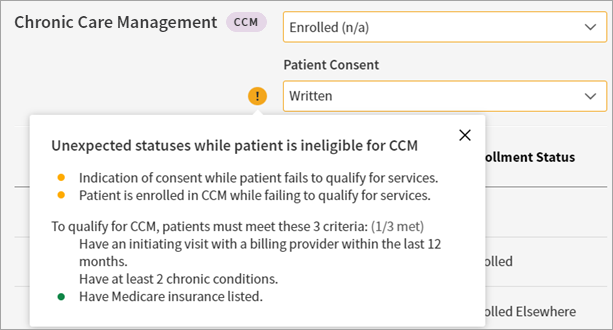
Practices using the CCM program can view alerts with details on patients' eligibility for CCM. You can see these alerts in the expanded view of the Care Programs section of the Care tab.
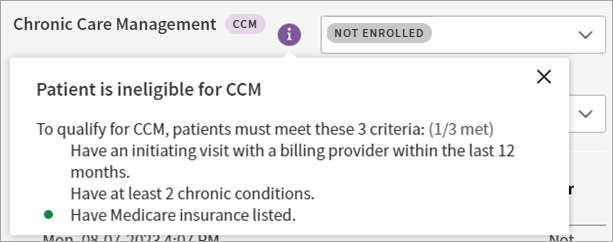
To qualify for CCM, patients must meet the following criteria:
- Have an initiating visit with a billing provider within the last 12 months (sourced from the claim history)
- Have at least two chronic conditions (sourced from the claim history)
- Have Medicare insurance listed (sourced from the patient's insurance in the Patient Registration page)
When a patient is ineligible for CCM, a tooltip displays specific information on that patient's status and eligibility. In the following example, the patient is ineligible for CCM because they don't meet all criteria:
In the following example, the patient is ineligible for CCM, but they have historical consent and enrollment status information: