 User Guide — Clinical Decision Support (CDS) Hooks Integration
athenahealth Marketplace CDS solutions can be integrated into athenaOne to send relevant clinical guidance for orders on the Order Group page or the Assessment & Plan section of the encounter.
For more technical information and resources, see the CDS Hooks article on the Developer Portal.
 Features and workflows
Clinical decision support (CDS) delivers proactive guidance at the point of care. Providers can use CDS guidance to accelerate the right actions for patients and ensure nothing is missed.
If your organization uses an athenahealth Marketplace clinical decision support (CDS) solution, the CDS solution can be integrated into athenaOne to send relevant clinical guidance for orders. Your organization can subscribe to CDS consultations from Marketplace partners or integrate your own homegrown CDS Hooks solution to view guidance at the point of care. For information about CDS vendors that can work with athenaOne, please visit the athenahealth Marketplace and search for "clinical decision support."
See the following sections in this article to learn how integrated CDS solutions display relevant clinical guidance within athenaOne. For information on enabling subscriptions for CDS vendors, see CDS subscriptions.
For more technical information and resources, see the CDS Hooks article on the Developer Portal.
Important: Clinical decision support can help providers quickly understand the recommended care for patients; however, providers should not rely solely on CDS guidance when making clinical decisions.
Decision Support Panel
When a provider adds orders to an order group or to the Assessment & Plan section of the encounter, athenaOne consults your organization's integrated CDS solution to display relevant clinical guidance.
CDS recommendations appear in the Decision Support Panel on the right side of the screen. The panel opens automatically when there are recommendations to show.
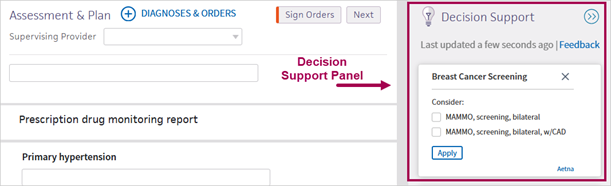
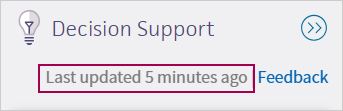
The Decision Support Panel displays recommendations when you first add an order. If you remove or update an active order, the panel doesn't refresh with updated guidance. The timestamp at the top of the panel indicates when the panel was last updated.
If you don't want to see CDS guidance, you can close the panel to prevent it from opening automatically. To close the panel, click the right-facing arrows  . To reopen the panel, click the lightbulb icon
  .
.
Recommendation cards
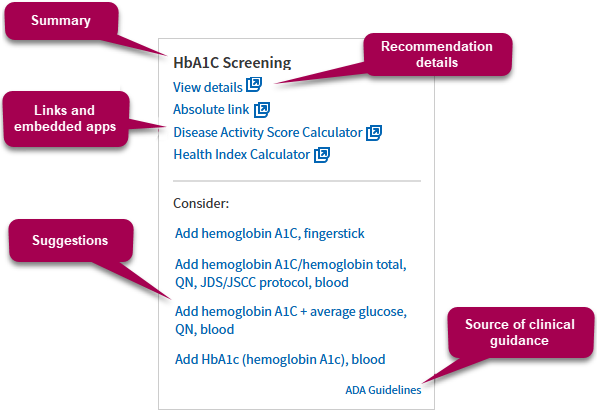
In the Decision Support Panel, CDS recommendation cards can display the following details:
-
Recommendation summary.
-
View details link — Click to see more information, provided by the vendor, about the recommendation.
-
Links to external resources and embedded apps, such as a disease activity score calculator.
-
Suggestions to consider.
-
Source of clinical guidance — Click the link (when available) to access the primary source of the guidance shown on the card.
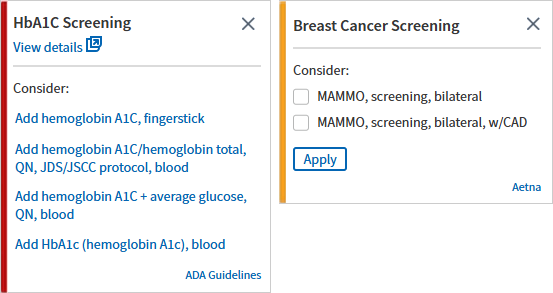
The Decision Support Panel arranges recommendation cards by urgency. Cards with a red bar (critical) and cards with an orange bar (warning) appear at the top of the panel.
Suggestions
When you accept a suggestion, the recommendation card disappears from the Decision Support Panel.
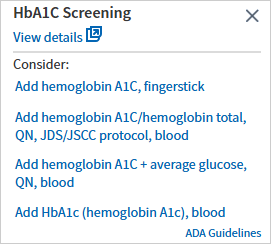
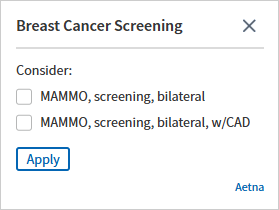
CDS cards can display multiple suggestions to consider as part of the recommendation. Depending on the recommendation, you can either select and apply one suggestion from the list, or select and apply multiple suggestions at once:
-
If you can choose only one suggestion, the recommendation card displays each suggestion as a link. Click a linked suggestion to apply the action in the chart.
-
If you can choose multiple suggestions, the recommendation card displays a checkbox next to each suggestion. Check the box next to one or more suggestions and click Apply to apply all selected actions in the chart.
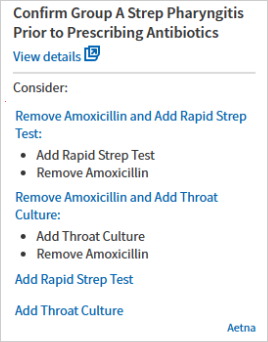
A suggestion can involve taking a single action, such as adding or deleting an order, or the suggestion can comprise multiple actions, such as both adding and deleting an order.
In the following example, the recommendation card includes two suggestions that comprise multiple actions. If you select Remove Amoxicillin and Add Rapid Strep Test, both actions (Add Rapid Strep Test and Remove Amoxicillin) are automatically applied in the chart.
Dismissing recommendations
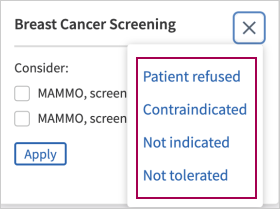
You can dismiss a recommendation to remove the card from the Decision Support Panel. Click the dismiss icon  in the top right corner of the card.
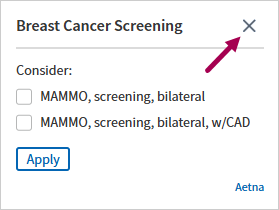
In some cases, you may need to select a reason for dismissal before you can dismiss the recommendation. The dismissal reasons are provided by the CDS vendor and can vary depending on the recommendation.
Service disruptions
If there's an issue with the CDS service that's preventing recommendations from appearing for patients, the Decision Support Panel displays an alert message for your awareness.
The following message indicates an error with athenaOne. In this case, practices should contact the CSC to submit a support case.
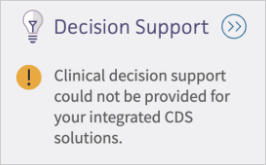
If an error message displays the name of the Marketplace partner your integrating with for CDS consultations, you must contact the vendor to resolve the issue.
Important: Alert messages are intended to indicate that recommendations could not be provided due to a system error, and not because there are no recommended actions to take. Keep in mind that if the Decision Support Panel is collapsed, error messages may not be visible. Providers remain responsible for ensuring patients receive the necessary care.
CDS subscriptions
Once the Authorization & Consent Form is signed between the practice and the CDS vendor (either a Marketplace partner or a homegrown CDS Hooks solution), the CDS Hooks subscription is activated automatically for all users in the practice.
To turn on or turn off a subscription for any CDS vendor, your practice can submit a case to athenahealth to update your CDS vendor subscriptions: On the Main Menu, click Support > Success Community. In the Support Cases section, click Contact Client Support Center.
Additionally, the CDS solution supports granular configurations (or) filters, allowing hooks to trigger only for specific users, departments, or provider groups within a practice. Practices can apply these configurations per CDS vendor by submitting a case to athenahealth to request updates.
In a future release, a new page in athenaConnect will enable practices to self-manage subscriptions and configurations directly.