 User Guide — Satisfying CPT Category II Codes
Certain provider actions during the encounter workflow automatically populate supported CPT Category II codes on the Billing tab during the Sign-off stage of the encounter. The codes appear in the CPT II Codes section.
Only the codes in this guide can be automated by athenaOne. Other CPT Category II codes must be entered manually on each claim. This automation reduces manual chart review work, and your organization may see higher reimbursement rates when claims are coded with accurate CPT Category II codes.
To request support for additional automated CPT Category II codes, submit a case to the CSC.
 Understand CPT Category II Code Automation
How automated CPT Category II codes work
Understand CPT Category II Code Automation
How automated CPT Category II codes work
When a provider completes a qualifying action in the patient chart or encounter workflow, athenaOne evaluates the documented information and adds the supported CPT Category II code to the Billing tab during the Sign-off stage of the encounter.
For some measures, athenaOne uses the most recent qualifying result or documentation within the required date range. If documentation does not meet the measure criteria, the code does not automatically appear.
athenaOne generates CPT Category II codes when these conditions are met:
- The code is supported by athenaOne.
- The supported CPT Category II code is in your fee schedule.
- Information from the encounter or patient chart relates to a supported code.
- The Billing tab has not yet been saved.
You see a message above each CPT Category II code that briefly explains why the patient's condition triggered athenaOne to generate the code. The message disappears after you save the Billing tab.
Note: If an automated code does not appear as expected, confirm that the patient meets the age and date requirements and that the qualifying document, result, screening, vital, or history item was documented in the supported location.
Important: If you are interested in using this feature, contact the CSC to enable it. In athenaOne, on the main menu, click Support, then click Create Case or Call.
What are CPT Category II codes?
CPT Category II codes track patient care. Payers use these codes to facilitate performance measurement. Category II codes are not required, but your organization may receive additional reimbursement when claims are coded with accurate CPT Category II codes.
Review and bill CPT Category II codes
Review the automatically generated CPT Category II codes before you save the Billing tab.
Note: If you exit the Billing tab without saving, athenaOne regenerates the CPT Category II codes when you reopen the tab. After you save the Billing tab, athenaOne does not regenerate additional CPT Category II codes when you reopen the tab.
- After you complete the A/P step of the Exam stage of the encounter, click Next to proceed to the Sign-off stage.
- Click the Billing tab on the right side of the screen.
- Review each code in the CPT II Codes section.
- Edit the CPT Category II code as needed.
- Enter the code's modifier if needed.
- Edit the number of units if needed. The number of units defaults to 1.
- Click Apply all ICD-10 codes to apply all diagnosis codes recorded during the Exam stage to each CPT Category II code, or enter ICD-10 codes manually.
- Click Bill these codes to select all CPT Category II codes to bill at once, or check the box in the Bill these codes column to select individual codes to bill.
- Click Save or Save & Mark Reviewed.
Important On the Billing tab, you must manually check the box in the Bill these codes column or click Bill these codes to ensure that the CPT Category II codes appear on the Charge Entry page. This requirement also applies if your organization uses athenaOne Medical Coding.
Important Each CPT Category II code you bill must have a corresponding ICD-10 diagnosis code. Some payers require specific ICD-10 codes for some CPT Category II codes. If you do not enter the ICD-10 code on the Billing tab, enter it on the Charge Entry page.
Note: You can click Don't bill these codes to deselect all CPT Category II codes.
Add a clinical document for supported measures
Several CPT Category II code automations depend on clinical documents and document results.
- In the patient chart, click the menu icon and select Add document.
- Click I have a file on my computer or network to upload.
- Select a Document Class from the menu.
- Click Choose File.
- Click Add Document.
- In the Document Label field, select the appropriate document label.
- Click Save and close the document.
Note: If results are not tied to the order automatically through an interface, you can add results to the order manually. If a result is received by fax or on paper, manually edit the document and tie the result back to the original order when required for numerator qualification.
Add surgical or procedural history
- In the patient chart, click the History tab.
- Go to Surgical/Procedural History.
- Click +.
- Search for and add the procedure.
- Click Add.
Screening and Documentation Codes
3017F - Colorectal cancer screening
This code is automatically added when a qualifying colorectal cancer screening is documented. athenaOne uses the most recent qualifying screening date.
- FOBT - Within the measurement year.
- Flexible sigmoidoscopy - Within 4 years.
- Colonoscopy - Within 9 years.
- CT colonography - Within 4 years.
- FIT-DNA test - Within 2 years.
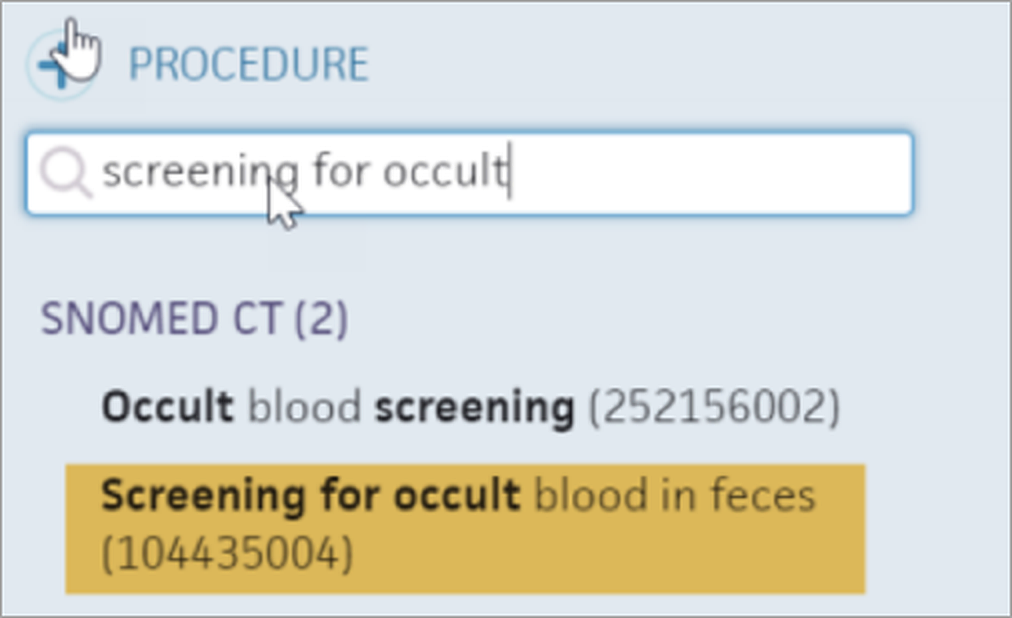
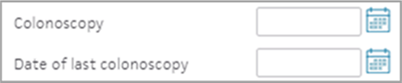
You can document qualifying screenings in...
- Surgical History:
- or GYN History:
- or by adding a Results document:

Following Document Class and Subclass combination will be supported.
DocumentClass = Lab Result, Imaging Result, and ClinicalDocument (Sub Class = ClinicalDocument_Operative Note)
Valid document labels for 3017F include:
- Colonoscopy
- Sigmoidoscopy
- FIT-DNA
- FOBT
- CT colonography
3014F - Breast cancer screening
This code is automatically added when a qualifying mammogram is documented within the past 27 months.
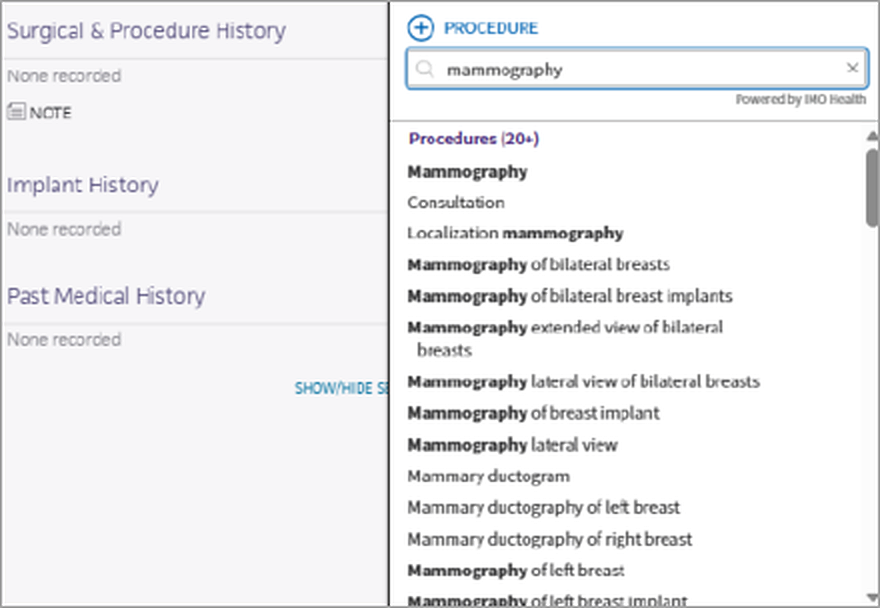
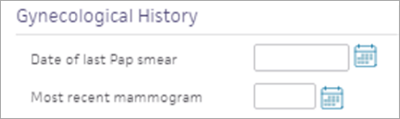
Qualifying documentation can include:
- A mammogram noted in Surgical History:
- or, the most recent mammogram date in GYN History:
- or a mammography result added through documents:

Following Document Class and Subclass combination will be supported.
DocumentClass = Lab Result, Imaging Result, and ClinicalDocument (Sub Class = ClinicalDocument_Operative Note)
Valid document labels for 3014F include:
- Mammography screening result document
3015F - Cervical cancer screening
This code is automatically added when a qualifying Pap or HPV screening is documented.
- Pap test - Ages 21-64, within 2 years.
- HPV test - Ages 30-64, within 4 years.
- Co-testing (Pap and HPV) - Ages 30-65, within 5 years.
Document the screening through a Pap/HPV order & result, or in GYN History, or by adding a document.
To document the date in GYN History, click the History tab, go to GYN History, expand the section, and enter the Pap smear date:

Following Document Class and Subclass combination will be supported.
DocumentClass = Lab Result, Imaging Result, and ClinicalDocument (Sub Class = ClinicalDocument_Operative Note)
Valid document labels for 3015F include:
- Pap test
- HPV test

3511F - Chlamydia and gonorrhea screening
This code is automatically added when a qualifying chlamydia and gonorrhea screening is documented by adding a document.
Following Document Class and Subclass combination will be supported.
DocumentClass = Lab Result, Imaging Result, and ClinicalDocument (Sub Class = ClinicalDocument_Operative Note)
Valid document labels for 3511F include:
- Chlamydia trachomatis (Chlamydia)

3725F - Depression screening
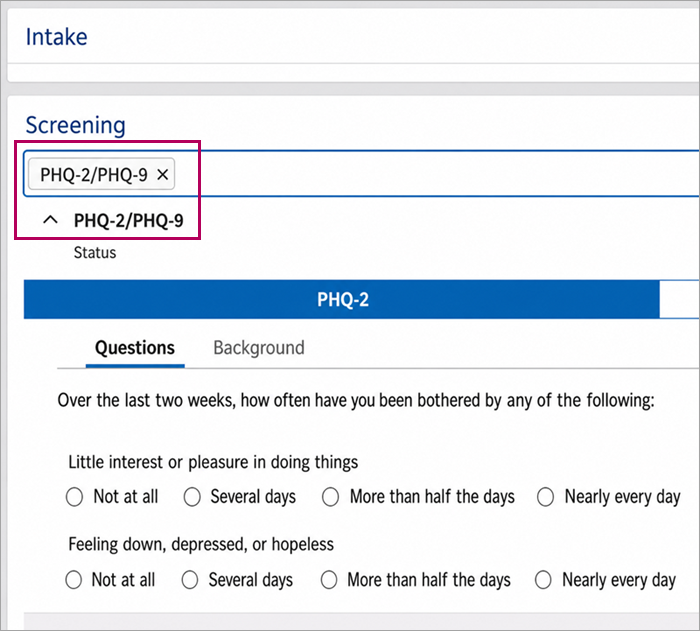
In the Screening section of the Review step of the exam, complete a supported depression screening questionnaire with the patient.
Supported screenings include:
- PHQ-2/PHQ-9
- GDS
- EPDS
- PSC-17
- Zung SDS
- Beck Depression Inventory
- BDI - 2
- CES-D
- QIDS-SR
- PDSS
- DUKE-AD
- PHQ-A
- PHQ-9: Modified for Teens (ages 11-17) - This code only populates if the patient is 12 by the end of the appointment's calendar year:
Encounter Workflow Codes
1034F, 1035F, and 1036F - Tobacco use
In the Social History section of the History tab of the encounter, the following question and answer combinations result in Tobacco Use CPT Category II codes.
| Social History question | Applicable answer | CPT II code result |
|---|---|---|
| Do you or have you ever smoked tobacco? | Current every day smoker; Current some days smoker; or Smoker - current/status unknown | 1034F |
| Do you or have you ever used e-cigarettes or vape? | Current user of electronic cigarettes | 1035F |
| Do you or have you ever used smokeless tobacco? | Current snuff user; Currently chews tobacco; or Currently uses moist/powdered tobacco | |
| All three Tobacco History questions | For each question, the patient's answer is a Never or Former user answer. | 1036F |
| If you skip these questions | (No answers are entered for the patient.) | No Tobacco Use CPT II codes appear on the Billing tab. |
Note: The codes only populate if the patient is 12 years old by the end of the appointment's calendar year.
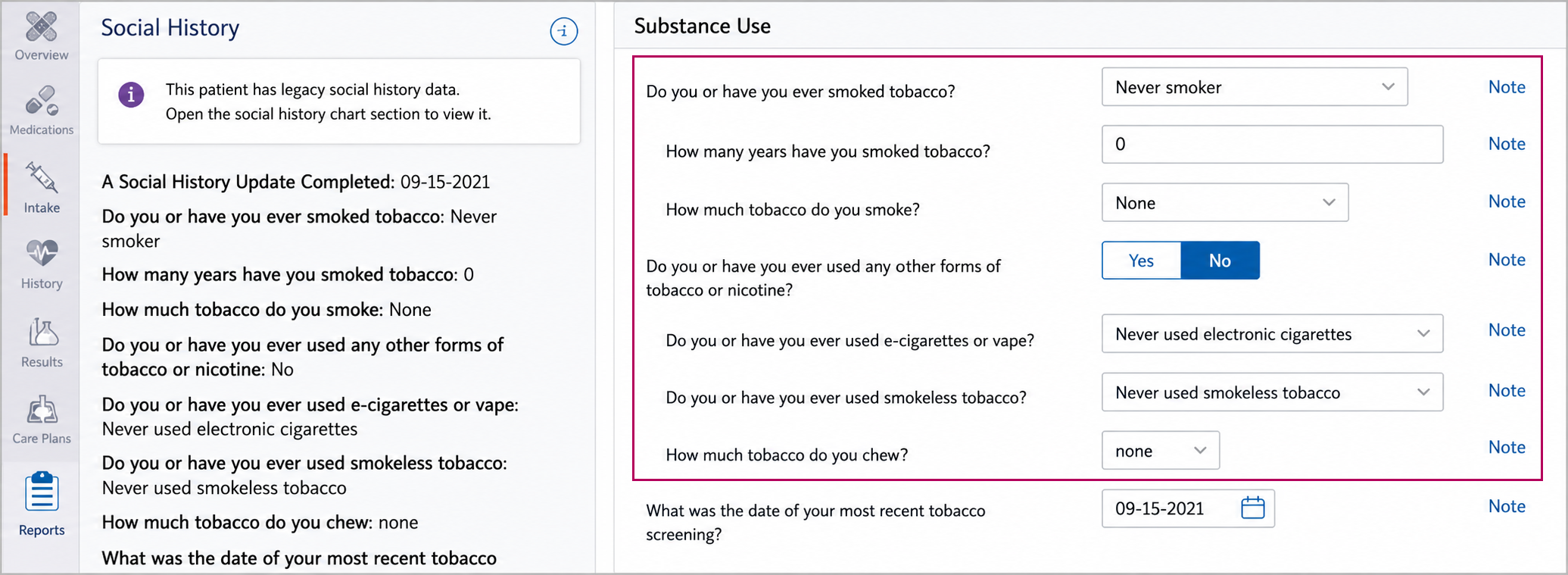
Tip: Hover over the image to get a closer look.
1090F - Urinary incontinence screening
In the Screening section of the Review step of the exam, complete either the ICIQ-SF or PISQ-IR screening questionnaire with the patient.
Note: These screenings are not common, so your practice might need to set them up.
1125F and 1126F - Pain severity
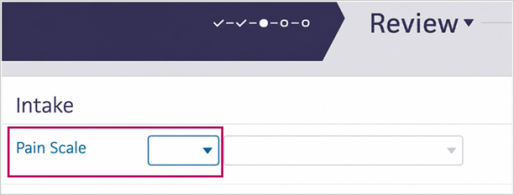
For practices with the pain scale configured in the Vitals section of the Intake stage, a pain scale value of 1 through 10 satisfies code 1125F. A value of 0 satisfies code 1126F.
1159F and 1160F - Medication list and medication review
In the Medications tab, add any active or historical medications for the patient and mark the section as Reviewed.
Note: These codes only populate if the patient will be 66 by the end of the appointment's calendar year.
1170F - Functional status assessed
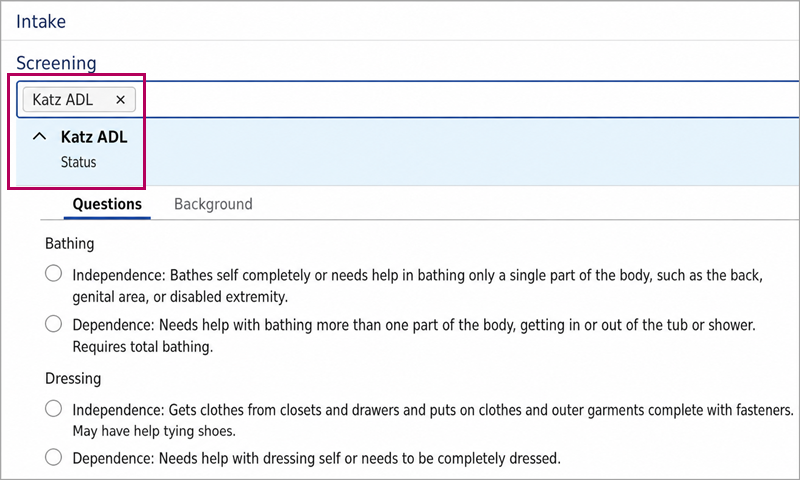
In the Screening section of the Review step of the exam, complete a supported functional status screening questionnaire with the patient.
Supported screenings include:
- Katz ADL
- Barthel Index
- Lawton IADL
- PROMIS Physical Function
- HAQ-DI
- HAQ-II
- KOOS Activities of Daily Living Score
- PROMIS PF10a
- PROMIS 10 Global Physical Health Score
3008F - Body mass index documented
In the Vitals section during the Review stage of the exam, enter the patient's height and weight. athenaOne automatically calculates the BMI.
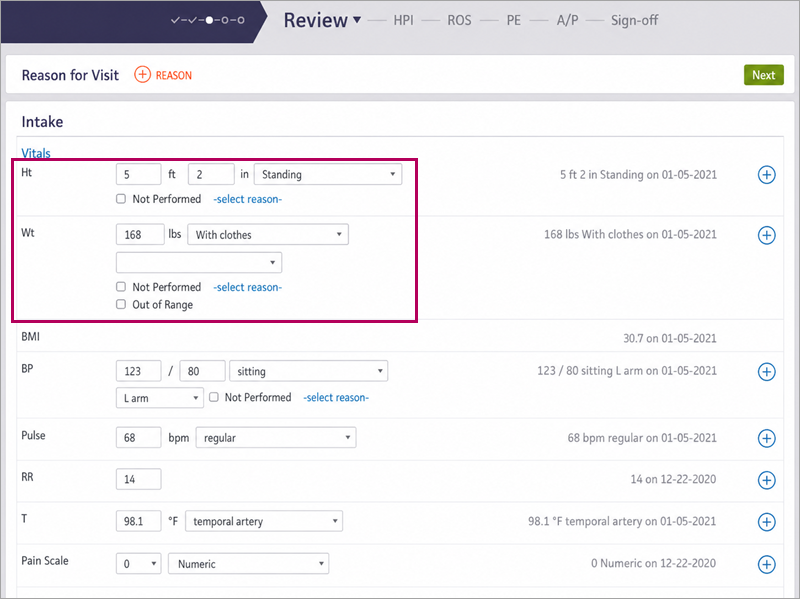
Tip: Hover over the image to get a closer look.
Note: This code only populates if the patient will be 3 years old by the end of the appointment's calendar year.
3074F, 3075F, 3077F, 3078F, 3079F, and 3080F - Blood pressure
In the Vitals section during the Review stage of the exam, enter a blood pressure reading.
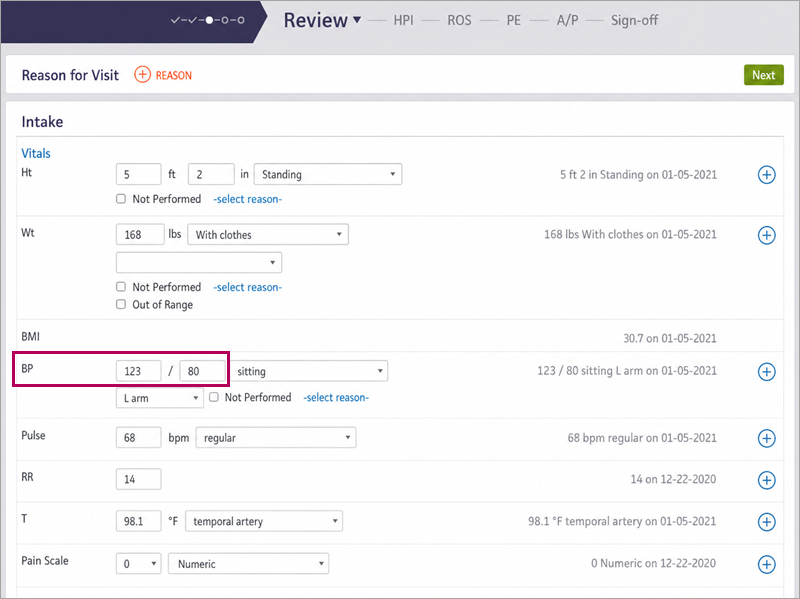
athenaOne uses the lowest blood pressure reading from the encounter when more than one reading is recorded during the same encounter. The lowest systolic reading and the lowest diastolic reading can come from different blood pressure recordings during the same encounter.
| CPT II code | Blood pressure result |
|---|---|
| 3074F | Most recent systolic blood pressure < 130 mm Hg |
| 3075F | Most recent systolic blood pressure 130-139 mm Hg |
| 3077F | Most recent systolic blood pressure >= 140 mm Hg |
| 3078F | Most recent diastolic blood pressure < 80 mm Hg |
| 3079F | Most recent diastolic blood pressure 80-89 mm Hg |
| 3080F | Diastolic blood pressure >= 90 mm Hg |
3288F - Falls risk assessment documented
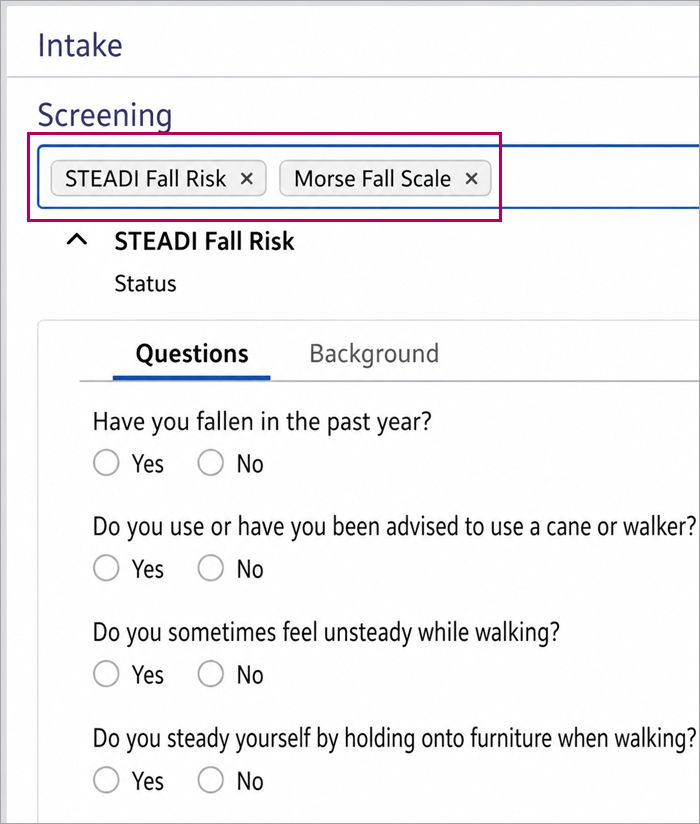
In the Screening section of the Review step of the exam, complete a supported fall risk screening questionnaire with the patient.
Supported screenings include:
- STEADI Fall Risk
- Morse Fall Scale
- Schmid Fall Risk
- Hendrich II Fall Risk
- Berg Balance Scale
- Dynamic Gait Index
- Tinetti Balance and Gait
- Falls Efficacy Scale
- Timed Get-Up-and-Go
- Gait - Parkinsons UPDRS
- Steadi Fall Risk - 3 item
- POMA
- Short FES-I
Result-Based Codes
2022F, 2023F, and 3072F - Diabetic retinal eye exam
In the Clinical Document section on the patient chart, add a document with a document result that has the result type Diabetic retinal eye exam.
- A value of Positive finding from the appointment's calendar year results in 2022F.
- A value of Negative finding from the appointment's calendar year results in 2023F.
- If there are no results from the appointment's calendar year, but the most recent result from the year before the appointment is a Negative finding, athenaOne adds 3072F.

Other conditions:
- If there are multiple results from a given year, athenaOne uses the most recent result.
- If a result is from the appointment's calendar year but after the appointment's date of service, athenaOne does not use it.
- The automation can occur even if the code was submitted earlier that year for the patient.
- The automation only occurs for patients ages 18-75 as of the end of the appointment's calendar year.
3044F, 3051F, 3052F, and 3046F - Hb A1c results
In the Results section of the patient chart, add a result associated with one of the following Hb A1c LOINCs: 4548-4, 17855-8, 4549-2, 17856-6, 62388-4, 96595-4, or 59261-8.
This automation should capture A1c results, including fingerstick tests. It should not capture results from non-A1c hemoglobin tests. Only results within the current calendar year are considered. The patient must be between ages 18 and 75 in the appointment's calendar year.
athenaOne adds the appropriate code based on the result value. If automation does not work for certain results, confirm whether the patient falls within the required age and date range and whether the results are properly tagged with one of the associated LOINCs during results transfer.
One known case where a LOINC might not be associated with a result involves certain Point-of-Care Testing (POCT) templates on the Office Order Type configuration page. LOINCs are associated only with templates that have a Result Type of Analyte Table. If the result type is Dropdown/Freetext List or Dropdown/Freetext Grid, the appropriate LOINC is not associated and the result is not picked up for automation.
Note: athenaOne uses the Date of Service on the claim by default for these charge lines. General guidance for these codes is to use the Lab Date. Currently, you can update the charge date on Charge Entry and Claim Edit, but not on the Billing tab. athenaOne displays a warning message above each code to indicate this limitation.
Care Transition Codes
1111F - Medication reconciliation post-discharge
Code 1111F is automatically added when any of the following conditions is met:
- Supported CCDA and non-CCDA discharge-summary document is present in the patient chart (Details on valid discharge summary labels and classes are provided below).
- For CCDA discharge summaries, Medication reconciliation is completed, via the ‘Legacy Medication Reconciliation Workflow’Medication reconciliation is completed.
- All medications are reconciled or dismissed.
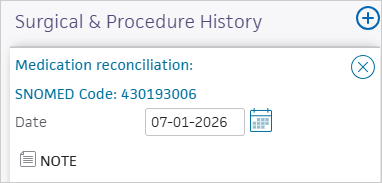
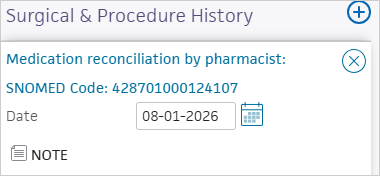
- A Medication reconciliation procedure is added through Surgical & Procedure History.
- The Medication Reconciliation (1111F) procedure template is completed through the procedure template workflow.
Note: Above medication reconciliation actions are taken on the day of inpatient discharge through 30 days post-discharge.
The discharge summary document is considered valid if it is associated with one of the following COT IDs, document labels, and class/subclass combinations.
The document can be a CCDA discharge summary or a non-CCDA discharge summary.
| COT ID | Document label | Supported class/subclass combinations |
|---|---|---|
| 274828 | Hospital Discharge Summary | ADMIN / CLINICALDOCUMENT_ADMISSIONDISCHARGE; CLINICALDOCUMENT / CLINICAL DOCUMENT_ADMISSION/DISCHARGE SUMMARY; HOSPITAL / CLINICALDOCUMENT_ADMISSIONISCHARGE; HOSPITAL_ADMISSIONDISCHARGE |
| 390205 | Psychiatric Hospital Discharge Note | CLINICALDOCUMENT / CLINICALDOCUMENT_ADMISSIONDISCHARGE |
| 392039 | ICU Discharge Summary | CLINICALDOCUMENT / CLINICALDOCUMENT_ADMISSIONDISCHARGE |
| 395333 | OB Delivery Discharge | CLINICALDOCUMENT / CLINICALDOCUMENT_ADMISSIONDISCHARGE; CLINICALDOCUMENT / CLINICALDOCUMENT_ADMISSIONISCHARGE |
| 395362 | Postpartum Discharge Summary | CLINICALDOCUMENT / CLINICALDOCUMENT_ADMISSIONDISCHARGE; CLINICALDOCUMENT / CLINICALDOCUMENT_ADMISSIONISCHARGE |
| 423198 | NICU Discharge Summary | CLINICALDOCUMENT / CLINICALDOCUMENT_ADMISSIONDISCHARGE |
| 428324 | Hospital Discharge Instructions | CLINICALDOCUMENT / CLINICAL DOCUMENT_ADMISSION/DISCHARGE SUMMARY; CLINICALDOCUMENT / CLINICALDOCUMENT_ADMISSIONDISCHARGE; CLINICALDOCUMENT / HOSPITAL_ADMISSIONDISCHARGE |
Legacy medication reconciliation
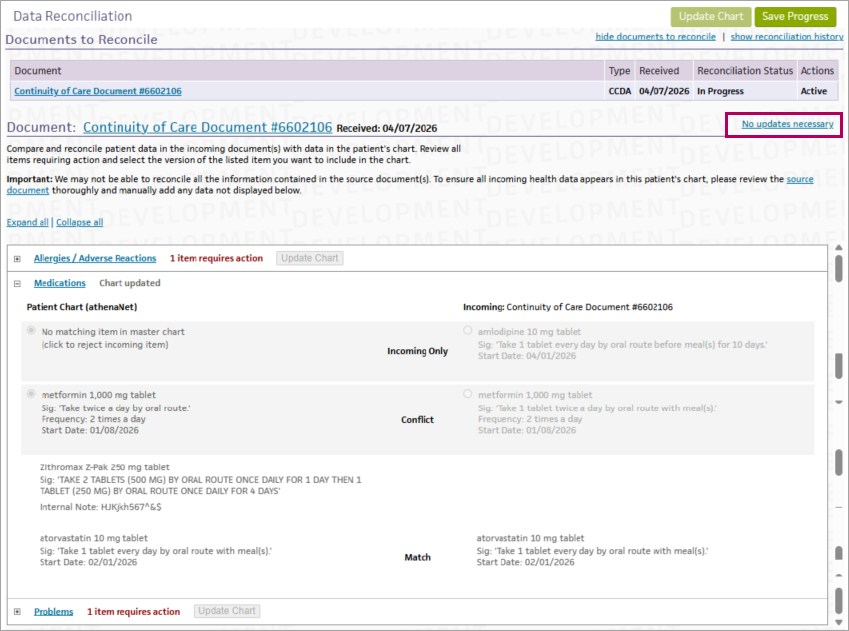
- Match - same information in the chart and incoming record; no action needed.
- Conflict - different information; choose the chart or incoming version.
- Chart Only or Incoming Only - keep or add as needed.
- Save progress as you go, then click Update Chart when done.
Note: Medication reconciliation can be completed either by:
- Reconciling all medications, or
- Selecting No Update Necessary when the imported medication list requires no changes.
Add surgical and procedural history
- In the patient chart, click the History tab.
- Click Go To, then select Surgical & Procedure History.
- Click +.
- Search for and add the procedure from the list.
- Click Add.
Document a medication reconciliation procedure during an encounter
- In the Exam stage of an encounter, click the PE step indicator.
- Under Procedure Documentation, click the plus icon
 and select the Medication Reconciliation (1111F) procedure template.
 - Complete the template and click Next. If the template is mapped to a procedure code, the code is prepopulated on the Billing tab in the Sign-off stage and on the claim's billing tab in the Checkout stage.

Note:
- Use the Medication Reconciliation (1111F) procedure template. You can create or add local procedure templates on the Procedure Templates page. You can create local procedure code mappings for accelerated billing on the Order Type & Procedure Template Mapping page.
- You do not have to manually link 1111F code to this template, in order for this automation to work.
Note: For CCDA documents, athenaOne uses the Document Created Date to determine whether the discharge document falls within the required timeframe. For non-CCDA documents, athenaOne uses the observation date and time associated with the document.
List of supported CPT II codes — change history
| CPT II procedure code | Change made | Release window |
|---|---|---|
|
Added these CPT II codes to the list of supported codes. | July 2026 |
| 3044F, 3051F, 3052F, and 3046F - Hb A1c codes | Added these CPT II codes to the list of supported codes. | August 2025 |
| 2022F, 2023F, and 3072F - Diabetic eye exam codes | Added these CPT II codes to the list of supported codes. | August 2025 |
| 1170F - Functional status assessed | Updated the list of applicable screeners. | May 2025 |
| 3288F - Falls risk assessment documented | Updated the list of applicable screeners. | May 2025 |
| 3725F - Depression screening performed | Updated the list of applicable screeners. | May 2025 |
| 3725F - Depression screening performed | Updated the logic so the code automatically populates only for patients who will be 12 by the end of the appointment's calendar year. | August 2024 |
| 3008F - BMI documented | Updated the logic so the code automatically populates only for patients who will be 3 by the end of the appointment's calendar year. | May 2024 |
| 1159F and 1160F - Medication list and medication review | Updated the logic so the codes automatically populate only for patients who will be 66 by the end of the appointment's calendar year. | February 2024 |
| 1034F and 1036F - Tobacco use codes | Non-answers, such as Patient Refused, result in no Tobacco Use CPT II codes appearing on the Billing tab. Previously, a Non-User code could appear. | March 2022 |
| 1034F, 1035F, and 1036F - Tobacco use codes | Uses the new Social History questions. Added 1034F and 1035F. | October 2021 |
| 3074F, 3075F, 3077F, 3078F, 3079F, and 3080F - Blood pressure codes | Updated the logic so the lowest blood pressure reading from the encounter is used, not necessarily the most recent reading. | August 2021 |
| 1159F - Medication list documented | Added this CPT II code to the list of supported procedure codes. | August 2021 |