Cost Estimation Templates
This page allows you to create, update, and delete Cost Estimation Templates. Cost Estimation Templates specify the procedure codes which are typically associated with a specific department, appointment type, provider, or patient age range. When creating a cost estimate for a self-pay patient's appointment, you can select a Cost Estimation Template to populate the Procedure code fields, instead of manually entering procedure codes.
 How do I get to this page?
On the Main Menu, click Settings  >Billing. In the left menu, under Practice Links — Fee and Allowable Schedules, click Cost Estimation Templates.
Tip: Alternatively, enter text in the search box.
The Cost Estimation Templates page appears.
Example- Cost Estimation Template
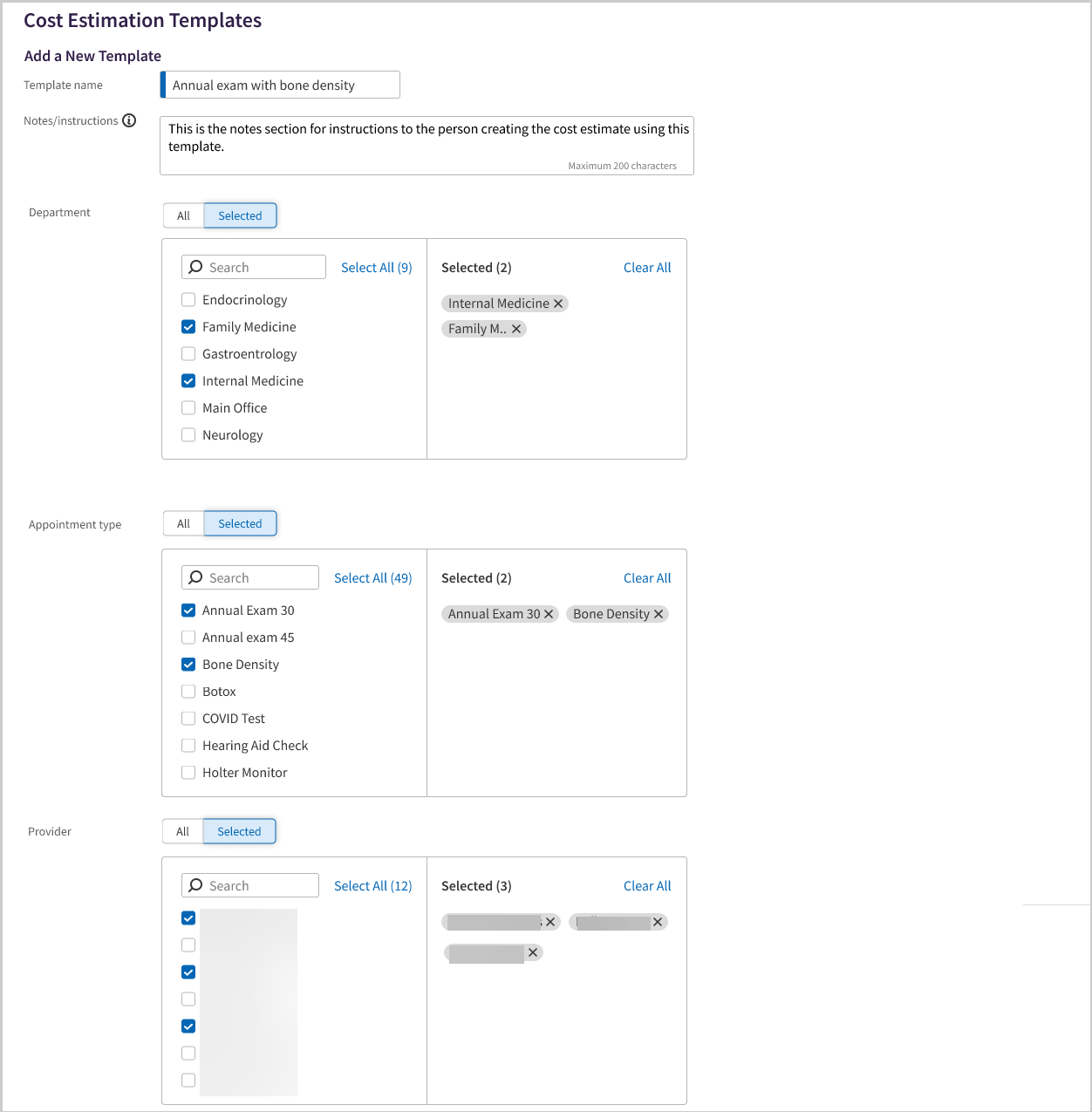
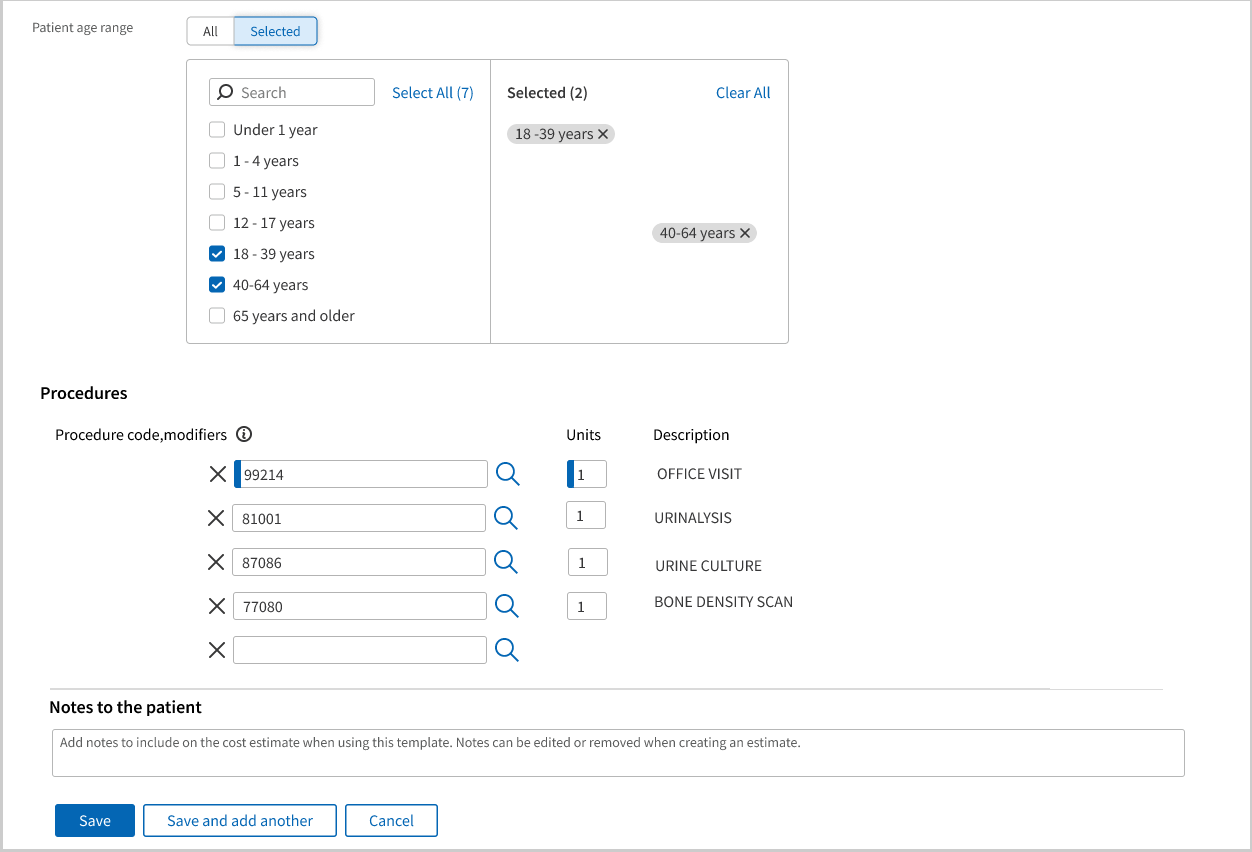
Tip: Click the image to see an expanded view
User access and permissions
To access allowable and fee schedules, you must have one of these permissions:
- Practice Set-Up: Fee Schedules/ Procedure Codes/ Groups/ Modifiers
- View Fee Schedules
Step-by-step instructions
To create a Cost Estimation Template
-
Display the Cost Estimation Templates page:
On the Main Menu, click Settings
>Billing. In the left menu, under Practice Links — Fee and Allowable Schedules, click Cost Estimation Templates.Tip: Alternatively, enter text in the search box.
The Cost Estimation Templates page appears.
- Click Add Template.
-
Complete the fields to define the template. For field descriptions, see Field Reference.
- Click Save or Save and add another.
Tip: If you leave a criteria field blank, athenaOne treats the blank field as if you selected All. For example, if the Provider field is blank, the template applies to all providers who otherwise match the template criteria.
To
edit an existing Cost Estimation Template
-
Display the Cost Estimation Templates page:
- Review the list of existing Cost Estimation Templates.
- Click Edit next to the specific template you want to edit.
- Edit the fields as needed. For field descriptions, see Field Reference.
- Click Save.
On the Main Menu, click Settings >Billing. In the left menu, under Practice Links — Fee and Allowable Schedules, click Cost Estimation Templates.
Tip: Alternatively, enter text in the search box.
The Cost Estimation Templates page appears.
To delete an
existing Cost Estimation Template
-
Display the Cost Estimation Templates page:
- Review the list of existing Cost Estimation Templates.
- Click Delete next to the specific template you want to delete. A warning message appears.
- Click OK to delete the schedule, or Cancel to preserve it.
On the Main Menu, click Settings >Billing. In the left menu, under Practice Links — Fee and Allowable Schedules, click Cost Estimation Templates.
Tip: Alternatively, enter text in the search box.
The Cost Estimation Templates page appears.
Features and workflows
Using Cost Estimation Templates in Self-Pay Patient Appointments
When creating a cost estimate for a self-pay patient's appointment, you can select a Cost Estimation Template to automatically populate the Procedure code,Modifiers and Units fields based on what your organization has defined in the selected template, instead of manually entering that information.
-
athenaOne uses the appointment information to help you select the appropriate template.
-
Only templates which match the appointment criteria appear in the Cost Estimation Template menu.
-
Note: For provider matching: A template is considered a match for an appointment if any of the following appointment provider fields match the Provider in the template (and the appointment matches all other criteria in the template):
- Rendering Provider
- Scheduling Provider
- Supervising Provider
-
When only one template matches an appointment, athenaOne selects that template automatically in the Cost Estimate section. Your practice user can still make edits to the procedure codes that come with the selected template.
Front Desk staff are generally less familiar with procedure codes and might have difficulty completing the Procedure code fields needed to generate a cost estimate.
Field Reference
| Template Name |
Enter a descriptive, unique name for the template. |
|---|---|
| Notes/Instructions |
(This will not be visible to patients) Enter brief instructions to help users in your practice when they're selecting a template for a cost estimate. (Maximum 200 characters) |
| Appointment Department |
Select specific department(s) or click Select all. |
| Appointment type | Click All or click Selected to select specific appointment type(s). |
| Provider |
Click All or click Selected to select specific provider(s).
Note: For provider matching: A template is considered a match for an appointment if any of the following appointment provider fields match the Provider in the template (and the appointment matches all other criteria in the template):
|
| Patient age range |
Click All or click Selected to select specific patient age range(s).
athenahealth defines the age ranges. |
| Add/Edit Procedure Code View | |
| Procedure code,Modifiers |
Enter procedure codes and fee-affecting modifiers (if applicable).
This field uses the same procedure code lookup which is available on many athenaOne pages such as Charge Entry and Claim Edit.
Press Tab to enter additional procedures |
| Units |
(Defaults to 1 when a procedure code is added.) Enter the typical number of units for the procedure. |
| Description |
(view-only) The procedure code's description |
| Notes to the patient |
Add notes to display for patients in the cost estimate. When creating the cost estimate, your practice user can still edit the notes for the patient before they appear in the Good Faith Estimate PDF form. |
Related Topics: